
Every Shopify store gets a sitemap the moment it goes live. Most merchants never touch it. Then they wonder why their products sit in Google's index for weeks before a single page ranks.
Here's the thing: Shopify generates your sitemap automatically, but generation and discovery are two different problems. Google will eventually find your sitemap on its own, usually through internal links and crawl paths. "Eventually" can mean weeks. For a new store launching a collection or a replatformed brand that just moved 4,000 URLs, those weeks cost real money.
Submitting your Shopify sitemap to Google Search Console takes about ten minutes if you know where to click. We do this on day one of every store launch and every migration, and in this post we'll walk you through the exact process, the verification gotchas that trip people up, and what to do after submission so the sitemap actually does something.
Where Your Shopify Sitemap Lives
Before you submit anything, find your sitemap URL. Shopify keeps it simple: every store has one master sitemap at a predictable location.
Open your browser and go to:
yourdomain.com/sitemap.xml
Replace yourdomain.com with your primary domain (the one with SSL active, not your .myshopify.com subdomain). You should see a sitemap index file that links to sub-sitemaps for products, pages, collections, and blog posts. That index file is what you submit to Google, not the individual sub-sitemaps.
Two things to check before moving on:
Your store must be live and password-protected stores will not work. Google can't crawl a store behind a storefront password. Remove it under Online Store → Preferences, at least until Google processes your sitemap. We usually remove the password 24–48 hours before launch day so early crawls don't hit a wall.
Your domain must have SSL. Shopify issues free SSL certificates automatically, but if your primary domain still points to HTTP or shows a certificate warning, fix that first under Settings → Domains. Google will not crawl sitemaps served over insecure connections reliably.
Step 1: Set Up Google Search Console
If you already have Search Console verified for your store, skip to Step 2. If not, this is where most merchants stall, because Google offers two verification methods and one of them doesn't play nicely with Shopify.
Go to Google Search Console, sign in with a Google account you control (use a company account, not a personal Gmail you'll lose access to), and click Add Property.
You'll see two options:
- Domain property: covers your entire domain including subdomains and both http/https versions. Recommended, but verification requires DNS access.
- URL prefix property: covers one exact URL version. Easier to verify with Shopify's meta tag method.
We use the Domain property for every store we manage. It consolidates data from www and non-www, http and https, into one view. You'll need to add a TXT record to your DNS.
If your DNS is managed through Shopify (Settings → Domains → your domain → DNS settings), copy the TXT record Google gives you and paste it there. Propagation can take a few minutes to a few hours. If your DNS is at Cloudflare or your registrar, add the record there instead.
Once verified, Google will start collecting data. Expect the first impressions and click data to appear within a few days, but historical data fills in gradually.
Step 2: Find and Submit Your Sitemap
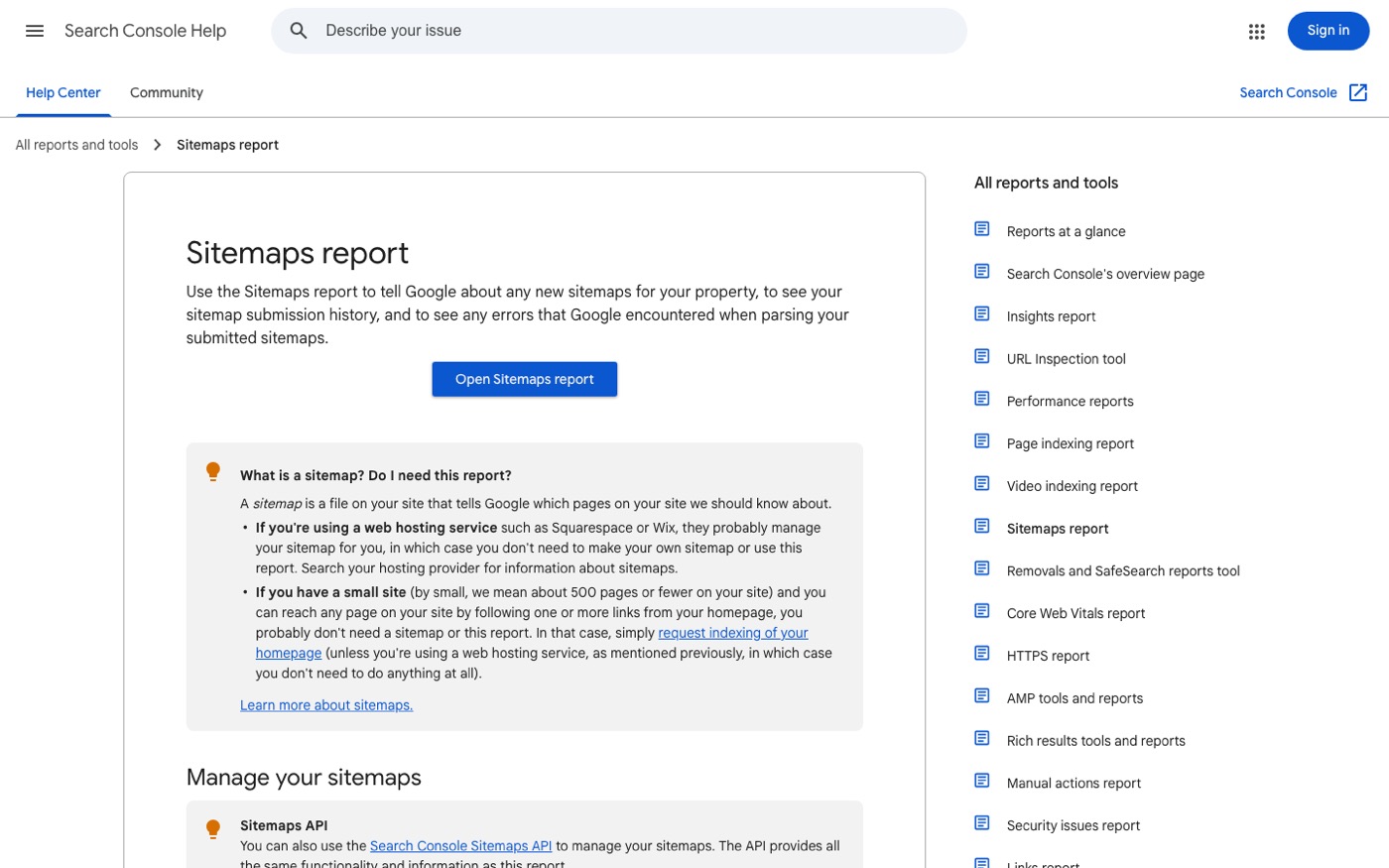
With Search Console verified:
- In the left sidebar, click Sitemaps under the Indexing section.
- In the "Add a new sitemap" field, type
sitemap.xml: just the filename, not the full URL. - Click Submit.
That's it. Google will queue your sitemap for processing. Most stores see "Success" status within a few hours to a couple of days.
A few notes from doing this hundreds of times:
If you get a "Couldn't fetch" error immediately, wait. It often resolves itself as Google's crawler works through the queue. If it persists for more than 48 hours, check that your store is publicly accessible and returns a 200 status at /sitemap.xml.
Don't submit sub-sitemaps individually. The index file at /sitemap.xml references all of them. Submitting each one separately just clutters your report.
If you replatformed from another platform, submit only the Shopify sitemap. Old sitemaps from WordPress or Magento pointing to 404 URLs teach Google that your sitemaps are unreliable. Delete or replace them.
Step 3: Submit to Bing (Yes, Still Worth It)
Bing gets ignored because its search market share is small compared to Google. That's a mistake, especially if you sell in the US. Bing powers DuckDuckGo, Copilot, and parts of Yahoo, and its organic traffic often converts at respectable rates because competition is lower.
Go to Bing Webmaster Tools, sign in with the same Google account, and use the Import from Google Search Console option. Bing will pull your verified property and sitemaps directly. Takes about five minutes and requires zero extra DNS work.
We've seen Bing and its syndication partners account for 8–12% of organic sessions on US-focused stores. Not nothing.
Step 4: Request Indexing for Your Money Pages
Sitemap submission puts your URLs in Google's queue, but the queue has a pecking order. Your homepage and top collection pages deserve a head start.
In Search Console, use the URL Inspection tool at the top of the page. Paste in your most important URLs one at a time: homepage, top three collection pages, bestselling product. After inspection, click Request Indexing.
Google limits how many indexing requests you can make per day, so prioritize. We typically request indexing for 10–15 URLs on launch day and let the sitemap handle the long tail.
Don't spam this tool requesting hundreds of URLs. Google throttles accounts that abuse it, and repeated requests for pages that haven't changed do nothing anyway.
Common Sitemap Mistakes We See on Shopify Stores
After auditing hundreds of Shopify stores, the same handful of sitemap problems keep showing up.
Submitting the sitemap on day one and never looking again. Sitemaps need occasional babysitting. Check Search Console monthly for "Couldn't fetch" errors, drops in discovered URLs, or a sudden spike in excluded pages. Each of those signals a real problem: a redirect loop, a noindex tag that shouldn't be there, or a theme update that broke your robots handling.
Blocking the sitemap in robots.txt. Shopify's default robots.txt is fine. But some merchants (or overeager developers) add disallow rules that accidentally block /sitemap.xml or whole sections of the store. You can view and edit your robots.txt at yourdomain.com/robots.txt (editing requires Shopify Plus, but you can at least check it). If you see Disallow: /sitemap.xml or a blanket disallow on collections, something's wrong.
Relying on sitemap submission for indexing. A sitemap is a suggestion, not a guarantee. Google indexes pages it considers valuable and crawlable. If your product pages are thin duplicates of each other, a sitemap won't save them. Internal linking matters more: your homepage, collections, and navigation should create clear paths to every page you care about. Cleaning up crawl waste also helps, and our guide on how to clear Shopify cache covers one often-overlooked piece of that puzzle.
Ignoring the Coverage report. Search Console's Pages report (formerly Coverage) tells you exactly why URLs are excluded: "Crawled, currently not indexed," "Discovered, currently not indexed," "Duplicate without user-selected canonical." Each exclusion reason points to a different fix. "Crawled, not indexed" usually means thin content. "Duplicate" means your canonical tags need attention.
Forgetting sitemaps after a migration. When you replatform to Shopify, your URL structure changes. Your old sitemap is now a map to a city that no longer exists. Update your Search Console sitemaps, and make sure your 301 redirects from the old platform are live before Google recrawls old URLs at scale. We run the old sitemap through Screaming Frog post-migration and verify every listed URL either redirects or resolves. Pages returning 404 that used to rank will bleed equity fast.
What to Expect After Submission
Sitemap submitted, indexing requested. Now what?
Set realistic expectations. For a brand new store, first impressions in Search Console typically appear within 1–2 weeks. Rankings follow months later, depending on competition, content quality, and backlinks. No sitemap submission has ever catapulted a store to page one; it just removes a technical obstacle so the real work can begin.
A few habits worth building:
Check Search Console weekly during the first three months. Look at the Pages report for exclusion patterns, monitor Core Web Vitals (which you can also spot-check with PageSpeed Insights), and watch which queries start earning impressions.
Time major changes with patience. If you restructure collections or rename products, expect a temporary ranking dip of a few weeks while Google recrawls and re-evaluates. Batch changes rather than dribbling them out.
Use the Performance report to find quick wins. After 4–6 weeks of data, sort queries by impressions where you rank positions 8–20. Those pages are one solid content push away from page one. Updating title tags, adding depth to product descriptions, and earning a few internal links to those pages moves them faster than almost anything else.
Frequently Asked Questions
Does Shopify automatically submit my sitemap to Google?
No. Shopify generates the sitemap file, but submission to Google Search Console is manual. Shopify does ping search engines about certain changes, but a proper Search Console setup gives you indexing data, query performance, and coverage reports you otherwise can't see. Always submit it yourself.
Why does Google say "Couldn't fetch" for my sitemap?
Usually a temporary crawl queue delay, and it resolves within 48 hours. If it persists, confirm your store is password-free, your SSL certificate is active, and /sitemap.xml loads in a browser. Less commonly, a misconfigured redirect or CDN rule intercepts the sitemap request. We check the URL in Screaming Frog first; it should return a 200 status, not a redirect or error.
How often should I resubmit my Shopify sitemap?
You don't need to. Shopify updates the sitemap automatically whenever you add or remove products, pages, or collections, and Google recrawls it periodically. Submit once, then monitor the status in Search Console. Resubmitting only makes sense after a major change like a migration or a large bulk upload.
Can I remove pages from my sitemap?
On standard Shopify plans, no; the sitemap is auto-generated and can't be edited. If a page shouldn't be indexed, the right tool is a noindex meta tag or a robots.txt disallow, not sitemap removal. Keep in mind that noindex pages still appear in the sitemap file, which is fine, Google respects the meta tag. Sitemap editing requires Shopify Plus.
Do I need a sitemap if my store only has 20 pages?
Probably not for discovery, honestly. Google will crawl a small store through internal links alone. But submitting one costs you five minutes and gives you Search Console coverage data, which is worth it at any store size. We submit sitemaps even for single-page stores because the monitoring value exceeds the effort.
Setting up Search Console is step one of a technical SEO foundation, not the finish line. If you'd rather have experts handle sitemaps, indexing, Core Web Vitals, and the full technical audit while you run your store, our Shopify SEO service covers everything from crawl diagnostics to content strategy. We've launched 200+ Shopify stores worldwide, and organic traffic is where our clients see the biggest compounding wins.
