Somebody in your company is about to spend a weekend editing four hundred prices by hand, and the tragedy is that Shopify already has the tool for this. The bulk editor sits one click from the product list, works like a spreadsheet, and handles the edits stores make most: prices, inventory, SKUs, tags, vendors.
The tool is not the risk. The risk is what bulk edits do at scale, where one wrong column multiplies across three thousand products before lunch. This guide covers the editor, the CSV route for bigger jobs, and the five checks that separate a clean bulk edit from a support-ticket avalanche.
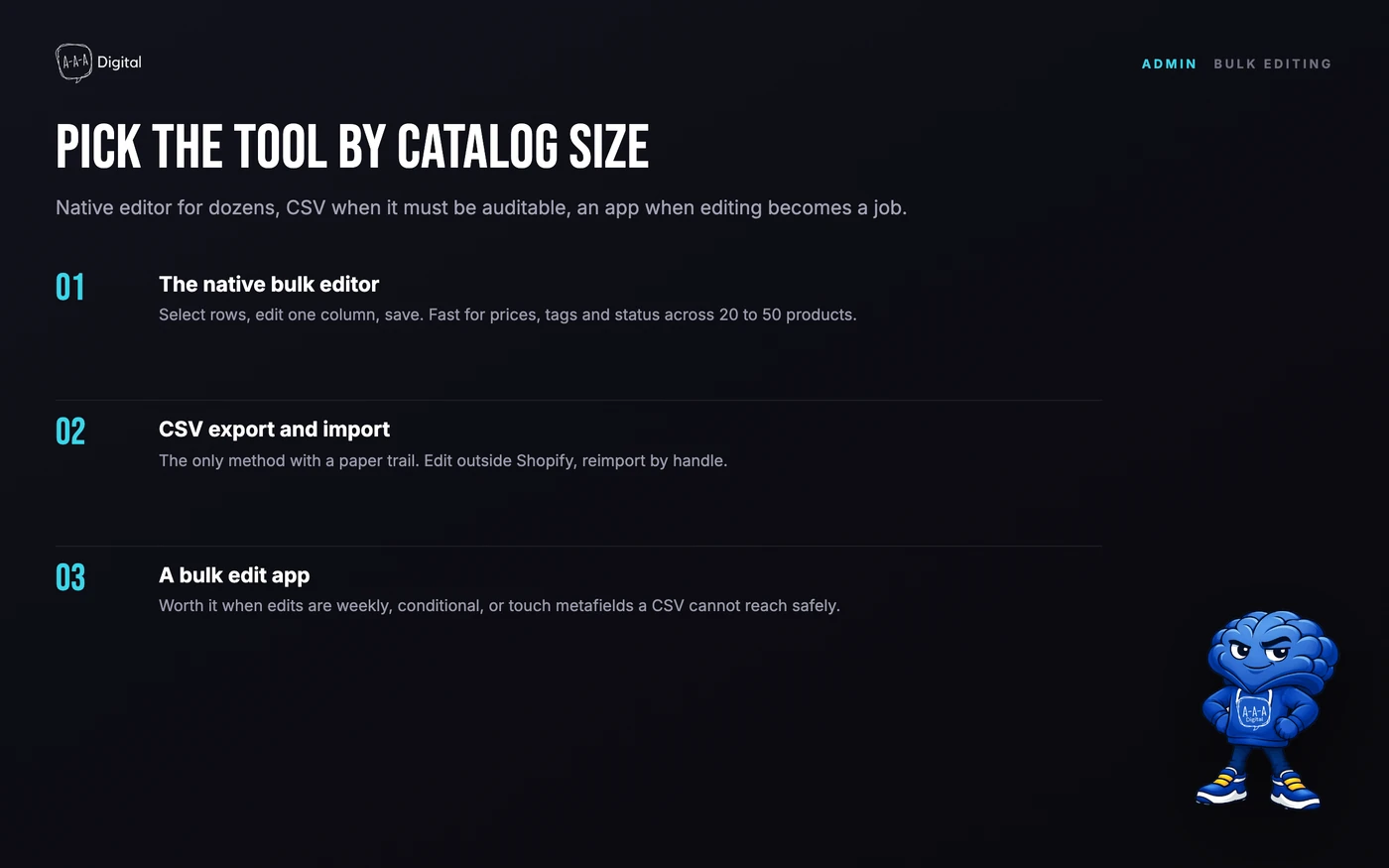
The native bulk editor
The built-in editor is the right tool for most jobs under roughly a hundred SKUs at a time:
- Go to Products in your admin.
- Tick the checkboxes of the products you want to change. Filter or search first if your catalog is large.
- Click Bulk edit. Shopify opens a spreadsheet-style grid with one row per product (and per variant, where variants exist).
- Add or remove columns with the Columns control. Common ones: price, compare-at price, inventory at each location, SKU, barcode, tags, vendor, product type, status.
- Click a cell, type, and move on. Changes save as you go; the editor autosaves per cell.
Variants appear as their own rows, which is the detail that surprises people: a product with four sizes is four editable rows, and its price column is per variant, not per product.
When to switch to CSV
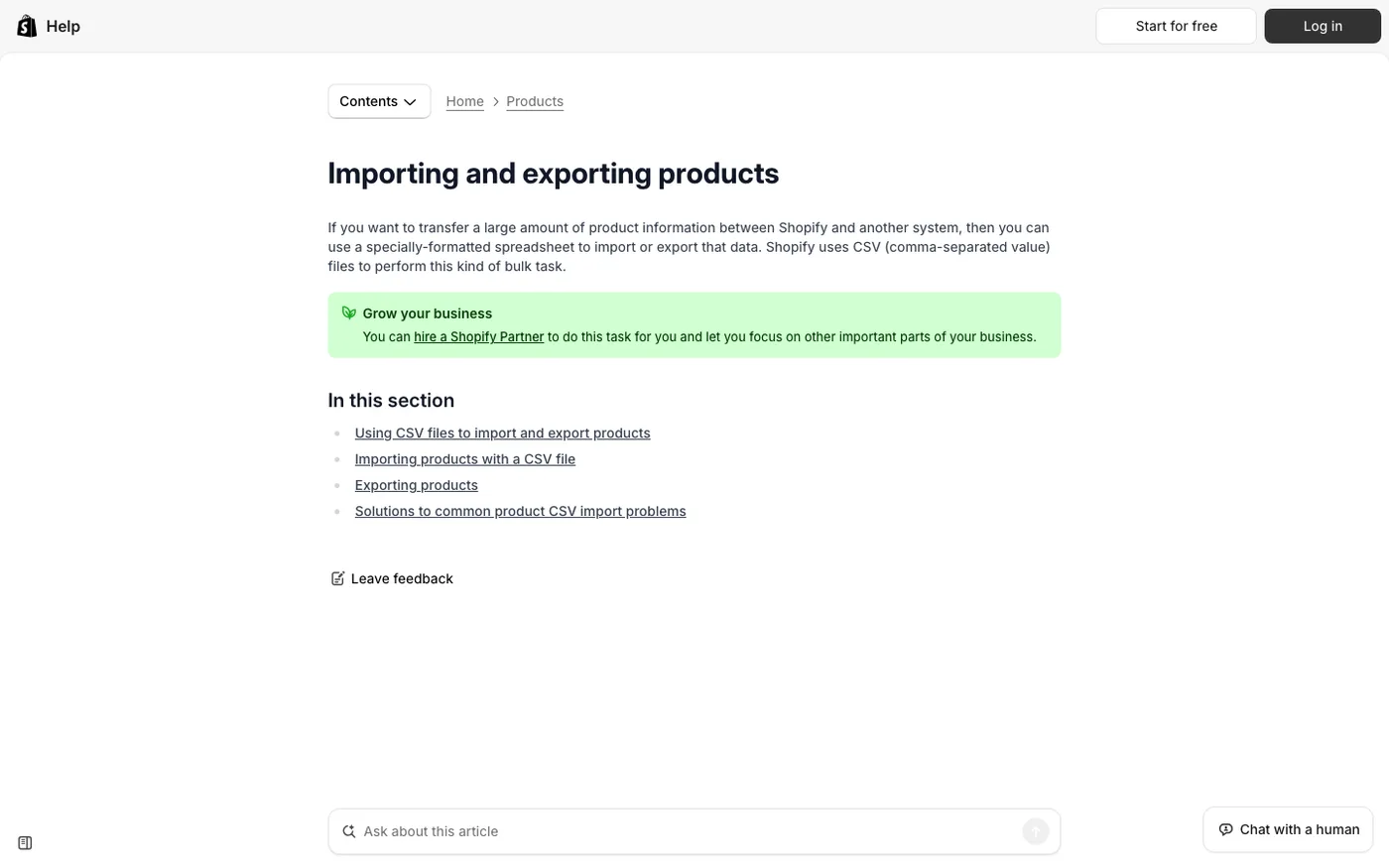
The editor is fast but manual and not auditable. Once the job crosses a few hundred rows, or when several people need to review the change, export and import:
- Products > Export, choosing current selection or all products, with plain CSV.
- Edit the file in Google Sheets or Excel. One row per product or variant, columns you can filter, sort, and formula-check.
- Products > Import the edited file. Shopify matches rows by handle or SKU and updates in place.
The CSV route is slower per change but it is the only one with a paper trail: you can diff the file, hand it to a colleague, and revert by re-importing the export you took first. For repeated, scheduled, or metafield-heavy work, this is also where apps take over.
When to use a bulk edit app
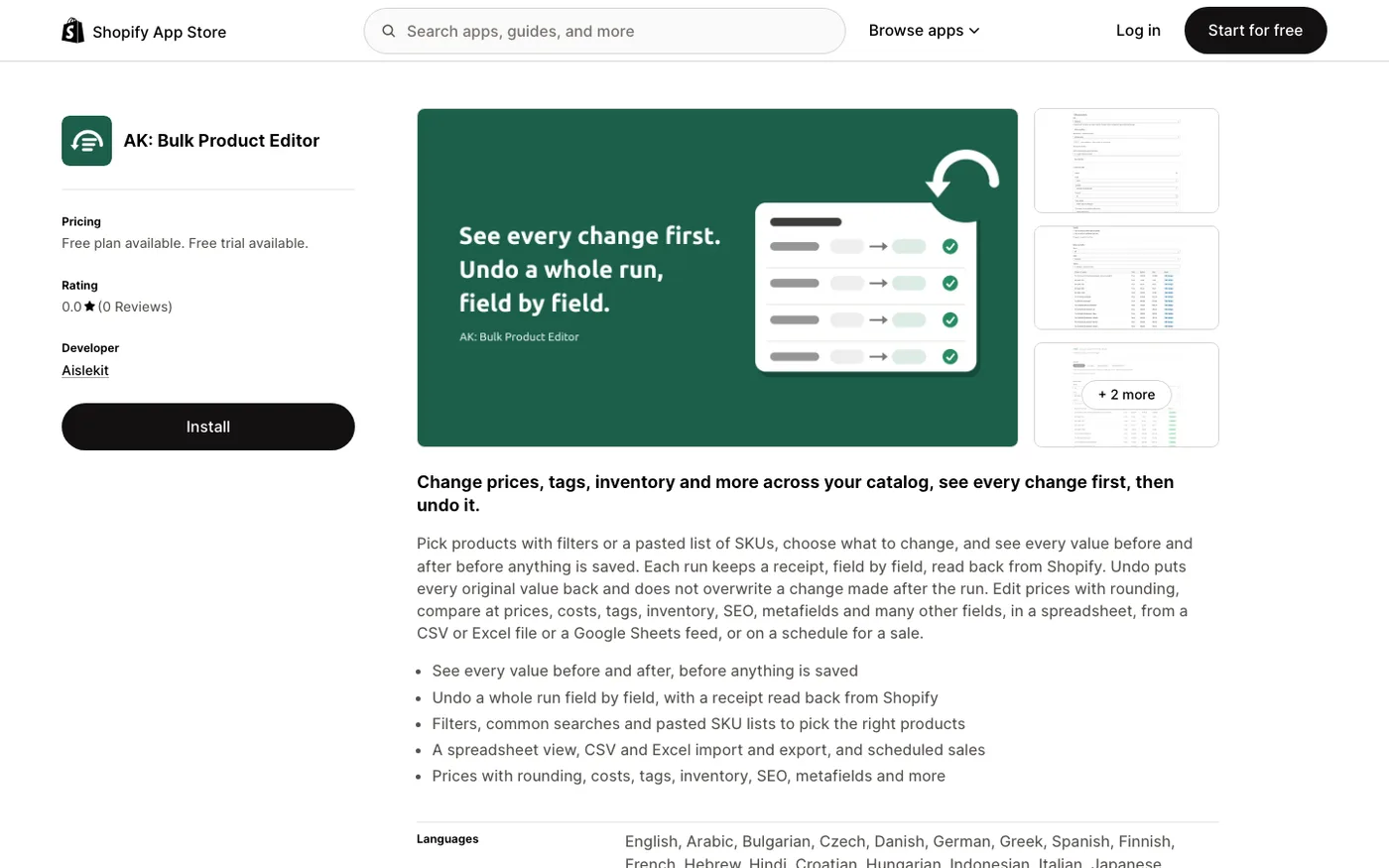
Two apps cover the workflows the native editor cannot:
Best for: Formula-driven edits, scheduling, and undo across large catalogs
The undo alone justifies it. Spreadsheet logic applied to Shopify, with a real audit trail.
See current pricingBest for: CSV-scale imports, exports, and automation across products, orders, and metafields
The power tool. Steeper learning curve, but it replaces half a dozen one-off scripts.
See current pricingReach for an app when the same edit repeats (monthly price reviews), when you need metafields or SEO fields in the grid, or when a single edit touches thousands of rows and you want an undo button.
The five checks before any bulk edit
These sixty seconds have saved more catalogs than any app:
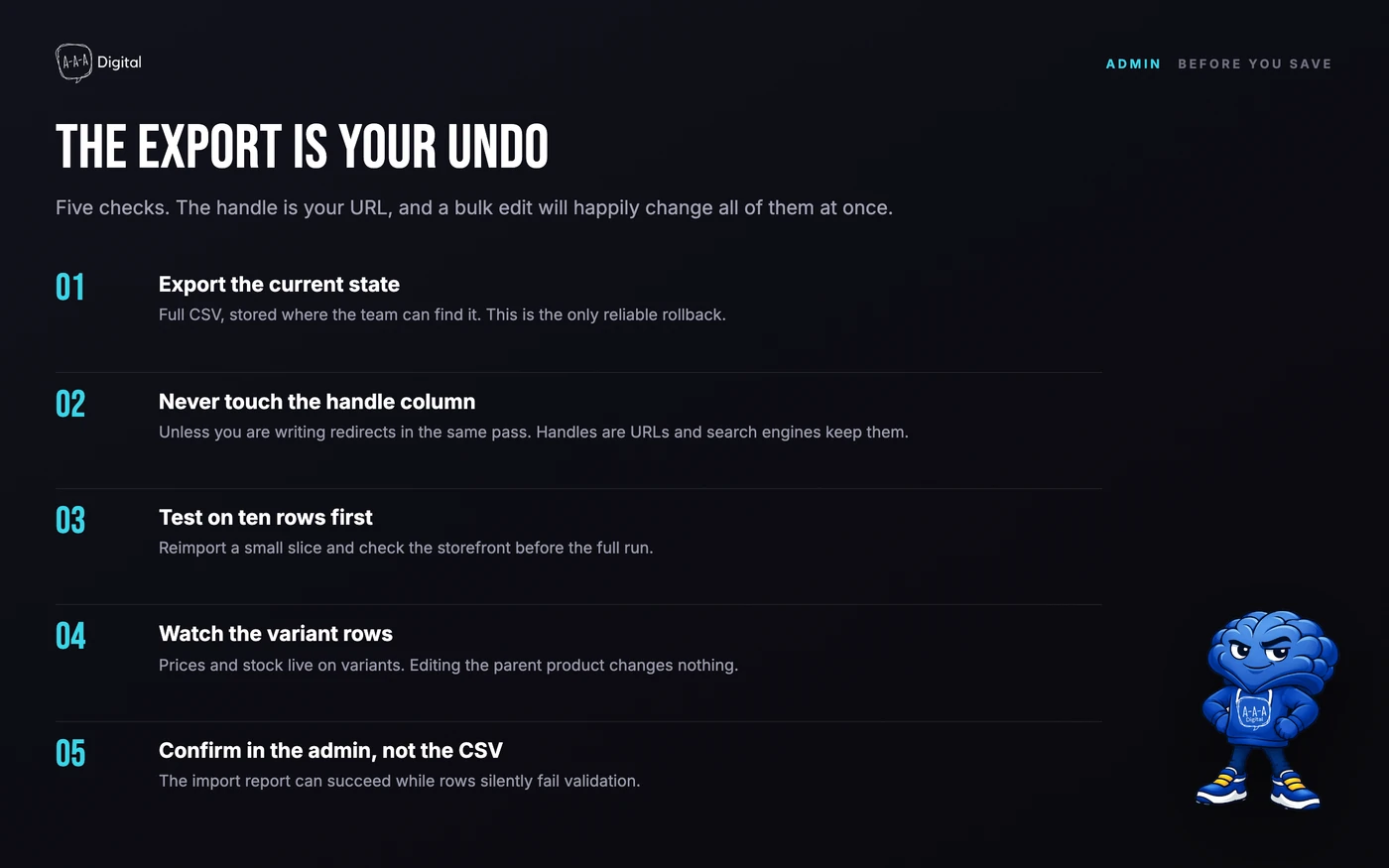
Export first. Take a CSV of everything you are about to touch. It is your undo button, and it costs thirty seconds.
Never touch handles. A product's handle is its URL. Editing handles in bulk rewrites every product URL at once, orphaning your rankings and every external link. There is almost no legitimate reason to bulk-edit handles; if you have one, pair it with our redirect guide.
Know adjust versus set. Inventory edits can either set a quantity or adjust by a delta. The wrong mode on four hundred rows either doubles your stock counts or zeroes them.
Remember what the editor does not cover. Metafields, SEO titles, and meta descriptions are not in the native grid. Plan a second pass in the CSV or an app, or you will ship a half-finished edit.
Sample, then scale. Apply the edit to five products first. Check the storefront, the collection pages, and a checkout. Only then continue with the rest.
Common bulk edit mistakes
Editing compare-at prices without the price column visible. The grid shows the columns you chose; a sale price edit with compare-at hidden creates "compare-at $0" rows that render as broken discounts. Keep both columns on screen when touching pricing.
Mass-editing tags by overwrite. In the editor, tag edits replace the tag set on that row. Appending a tag across two hundred products means typing the existing tags plus the new one, not just the new one.
CSV encoding and date formats. Excel on some systems mangles non-ASCII characters (accents, symbols) and reformats dates on import. Google Sheets avoids most of this; if you must use Excel, keep a UTF-8 copy.
Editing while a sale or feed sync is live. A price edit that collides with an app's scheduled sync produces a race where the app overwrites your change an hour later. Pause the sync or the promotion before big pricing edits.
FAQ
How do I bulk edit products on Shopify? Go to Products, tick the checkboxes, and click Bulk edit. A spreadsheet grid opens where you can edit price, inventory, SKU, tags, and more, one cell at a time.
Can I bulk edit prices on Shopify? Yes. Select the products, open Bulk edit, and make sure the Price column is visible. Variant-level prices edit per variant row.
How do I bulk edit inventory? Use the bulk editor with the inventory column for your location, or import a CSV with the new quantities. Know whether you are setting a value or adjusting by a delta.
Is there a way to undo a bulk edit? Native editor changes save per cell and have no undo. Your recovery is a CSV re-import of the export you took beforehand. Apps like Ablestar add a real undo.
How many products can I bulk edit at once? The editor handles dozens comfortably and a few hundred with patience. Beyond that, or for anything you need to audit, use CSV export and import or a bulk editing app.
Bulk edits are where catalog hygiene is won or lost, and they are the kind of operational cleanup our Shopify experts run every week. If the edit list is longer than an afternoon, book a free strategy call and we will scope it.
