The email arrives at 11pm: "Can I cancel my order? Ordered by mistake." If the order is still sitting unfulfilled in your admin, this is a two-minute job. If it shipped at 5pm, you now own a returns conversation instead.
Most cancellation guides stop at the button. The button is the easy part. What actually costs money is knowing whether the order can still be cancelled, whether the payment is an authorization you can void or a capture you must refund, and whether restocking the item is a good idea. This guide covers all of it, including the cases where cancellation is no longer on the table.
Before you start: two order states decide everything
Open the order in your Shopify admin and check two things before you reply to the customer. First, the fulfillment status: has anything in the order been fulfilled, shipped, or handed to a pickup point? Second, the payment status: has the card been captured, or is it still an authorized hold?
Those two answers route you to one of three outcomes:
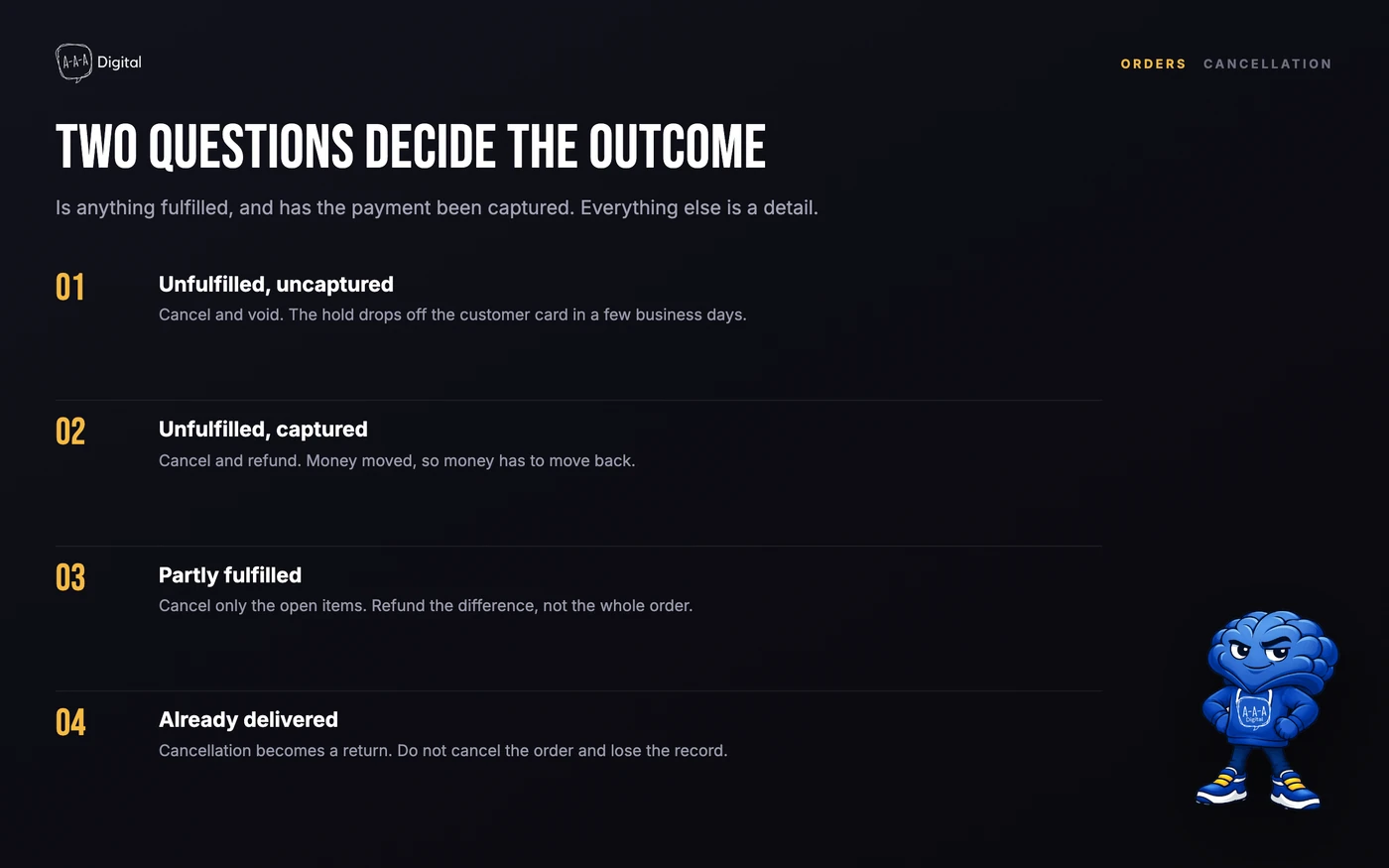
- Nothing fulfilled, payment not captured. You can cancel. Shopify voids the authorization and the hold disappears.
- Nothing fulfilled, payment captured. You can cancel, and the cancellation doubles as the refund. The money goes back through the card network on the bank's timetable, not yours.
- Anything fulfilled. The cancel option is gone. You are now running a return: get the item back, refund on receipt, restock after inspection.
If "Cancel order" is missing from your admin entirely, the order is already in one of the states where cancellation is impossible: fulfilled, archived as completed, or part of a draft order workflow. When in doubt, trust the missing button. It is Shopify telling you the state, not a bug.
How to cancel a single Shopify order
Once you have confirmed the order is cancellable:
- From your Shopify admin, go to Orders and click the order.
- Click More actions in the top right, then Cancel order.
- Choose a cancellation reason. Pick the honest one; these reasons aggregate into reports you will want later.
- Decide on the refund. If payment was captured, the screen shows the amount to refund back to the original payment method. Refunding now is the right default; refunding later leaves a loose end.
- Tick Restock inventory if the items can be sold again. Untick it for personalized, hygienic, or damaged-on-arrival goods.
- Leave Send a notification to the customer ticked unless you are handling the conversation elsewhere. The customer should never learn about a cancellation from their bank statement.
- Click Cancel order, then check the order timeline. You should see the cancellation, the refund (if any), the restock, and the notification in one place.
The order stays in your admin with a cancelled status. It is not deleted, and it should not be: it remains your record of what happened, for accounting and for disputes.
Void vs refund: the difference your customer will ask about
These are not the same action, and they do not feel the same to the buyer.
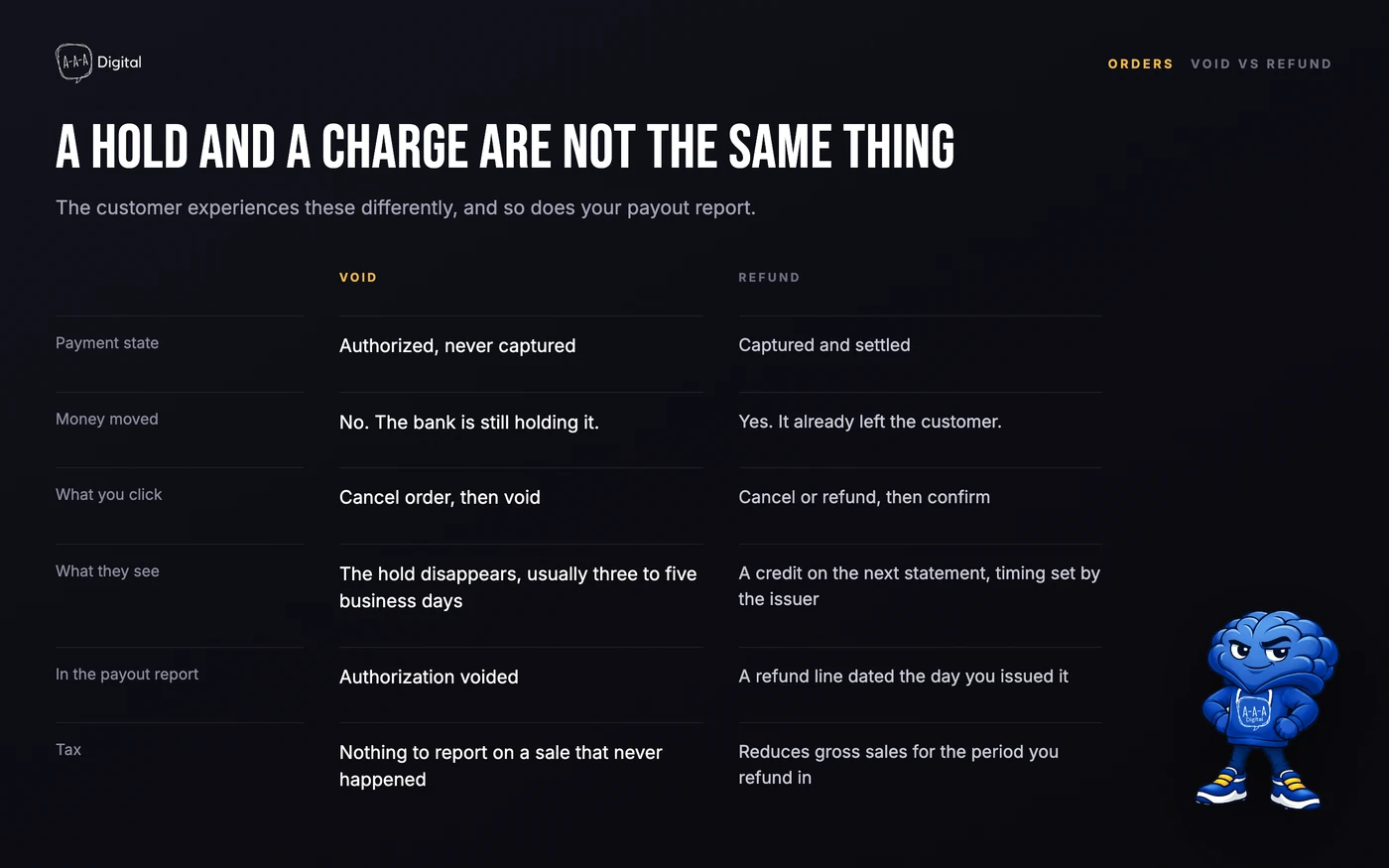
An authorization is the bank holding funds without moving them. Cancelling an order with an uncaptured authorization releases that hold. The buyer sees the pending charge vanish, usually within a few days, and no processing fee is collected. This is the clean outcome.
A capture means the money already moved. Cancelling now issues a refund through the card network, and the bank's refund timetable applies: commonly 5 to 10 business days, sometimes longer. The original processing fee is usually not returned to you by the gateway. That cost belongs in your margin math, and it is one reason stores set a clear cancellation window instead of absorbing cancellations indefinitely.
Cancelling one item without cancelling the order
Shopify's cancel action applies to the whole order. Customers rarely want that; they want one line item removed.
If the order is unfulfilled, use Edit instead: open the order, click Edit, remove the product or reduce its quantity, leave restock ticked, and collect or refund the difference. The order continues with the remaining items.
If the order is fulfilled or partially fulfilled, partial refunds are the tool: open the order, click Refund, select the item and quantity, choose whether to restock and whether to refund shipping, and confirm. The order completes with a partial refund on the timeline.
Tell the customer which one you used. "I removed the second item and refunded $34" prevents the follow-up email asking why the whole order shows as changed.
When you cannot cancel, and what to do instead
Cancellation has a hard edge, and it is fulfillment. Once an item is marked fulfilled or a shipping label exists, Shopify will not let you cancel, because cancelling an order that physically exists in the world creates accounting and inventory lies.
The correct sequence instead:
- Tell the customer the order shipped and offer the returns path. Do not promise a cancellation you cannot perform.
- If the package is still traceable, use the carrier's package intercept where it exists. It costs a fee and fails often enough that it should be the exception, not the plan.
- On return receipt, refund the item value, restock only sellable units, and log the reason.
Stores that sell made-to-order or perishable goods should shorten this further with a published policy: "Orders enter production within two hours and cannot be cancelled after that." Policies do not prevent angry emails, but they give your support team a defensible line. Our guide to the post-purchase experience covers where this message belongs in the order flow.
Cancelling orders in bulk
Individual cancellations do not scale. Flash-sale regret, a pricing error that went viral, or a fraud ring all produce dozens of orders that need the same cancellation.
Native Shopify has no bulk cancel. The practical route is a spreadsheet app: export the orders with their IDs, set the command to cancel with a reason, refund, and restock flags per row, and import. Matrixify is the tool we see most often for this, and its cancel workflow follows exactly that pattern: export IDs, fill cancel columns, import, verify in admin.
For a pricing-error fire drill, do three things before the bulk cancel: pause the offending ad campaigns, fix or hide the mispriced product, then process cancellations with the reason code that lets you analyze the blast radius later.
Letting customers cancel their own orders
Here is the awkward truth: Shopify has no customer-facing cancel button. A buyer who wants to cancel has to email you, wait for a reply, and hope someone sees it before fulfillment.
Your options:
- Write a cancellation window into your FAQ and order confirmation email. Most buyers contact you within an hour of ordering. A clear "reply within 2 hours to cancel" rule cuts the worst cases without any app.
- Use an order-management app that exposes self-service cancellation. Several apps in the Shopify App Store add a cancel button to the customer account page, usually gated by your rules (time window, fulfillment state). They are worth it once cancellations exceed a few a day.
- Add an editable-order window. Some apps let customers edit (swap size, change address) within a window instead of cancelling. An edit often saves an order a cancel would lose.
Whichever route you take, answer the pre-purchase question honestly on your site. Ambiguity about cancellation is a checkout conversion killer, and it is also the kind of friction our Shopify CRO work looks for first.
The five mistakes that cost real money
- Restocking items that should not be resold. Hygiene-sealed, monogrammed, or used goods restocked by reflex come back as chargebacks and bad reviews.
- Refunding before the return arrives. For returns, refund on receipt. Refund-before-return is a policy choice, but make it a choice with a threshold, not a reflex.
- Promising refund timelines you do not control. The bank controls the last mile. Tell customers 5 to 10 business days and let the early arrival be good news.
- Skipping the reason code. Cancellation reasons are free analytics. A spike in "ordered by mistake" points at your product page; a spike in "found a better price" points at your offer.
- Deleting cancelled orders. Cancelled orders are financial records. Keep them.
FAQ
Can I cancel a Shopify order after it has been placed? Yes, if nothing in the order is fulfilled. Go to Orders, open the order, choose More actions, then Cancel order. If the option is missing, something is already fulfilled and you need the returns flow instead.
Can I cancel a Shopify order that has already shipped? No. Fulfilled orders cannot be cancelled in Shopify. Handle it as a return: get the item back, refund on receipt, and restock sellable units.
Does cancelling an order refund the customer automatically? When payment is captured, yes: cancellation includes the refund back to the original payment method. When the payment is only authorized, cancelling releases the hold instead, which is faster and cleaner.
Can I cancel just one item in a Shopify order? Not with the cancel button. Edit the order before fulfillment to remove the item, or issue a partial refund after fulfillment.
How do I cancel a lot of Shopify orders at once? Use a spreadsheet app such as Matrixify: export the orders, mark each row to cancel with reason, refund, and restock settings, and import. There is no native bulk cancel in Shopify.
How long does a Shopify refund take to reach the customer? Typically 5 to 10 business days, depending on the card issuer. Cancelling an uncaptured authorization is faster because the hold simply releases.
Cancellations are a small operation, but they sit at the exact moment a customer decides whether your store is trustworthy. If your post-purchase flow needs work beyond this, book a free strategy call or see how our Shopify experts handle operations cleanup for stores at scale.
