Every store we launch goes through an awkward phase. The domain is live, the theme is half built, and the founder wants to share the URL with everyone they know. The instinct is to hide the store until it is perfect.
That instinct wastes the most useful weeks of the build. Shopify already gives you a coming soon page, it works on every plan, and it can collect email addresses while you finish the store. You just have to turn it on and dress it up.
First, a fact that resets most tutorials on this topic. On Shopify, the coming soon page is the password page. One feature, one template, one settings screen. Once that clicks, the rest of this guide is just customization.
On Shopify, the coming soon page is the password page
Shopify does not have a separate coming soon feature. When you want a pre-launch page, you enable password protection, and the password page becomes your storefront. Every visitor sees it instead of your store until you decide to open.
Turning it on takes about a minute:
- In Shopify admin, go to Online Store, then Preferences. On newer admin layouts the same setting also lives under Settings.
- Scroll to Password protection and tick Restrict access to visitors with the password.
- Save. Your Shopify coming soon page is now live at your domain.
Anyone with the password can still view the real store, which is handy for your developer, your designer, and the friend who keeps asking to see progress. Share the password privately, never in a public caption.
The password page is available during the free trial and on every paid plan, at no extra cost. Development stores, the ones agencies build on before you pick a plan, are password-protected by default. And removing the password is the act that actually launches your store, which is why the checklist later in this post exists.
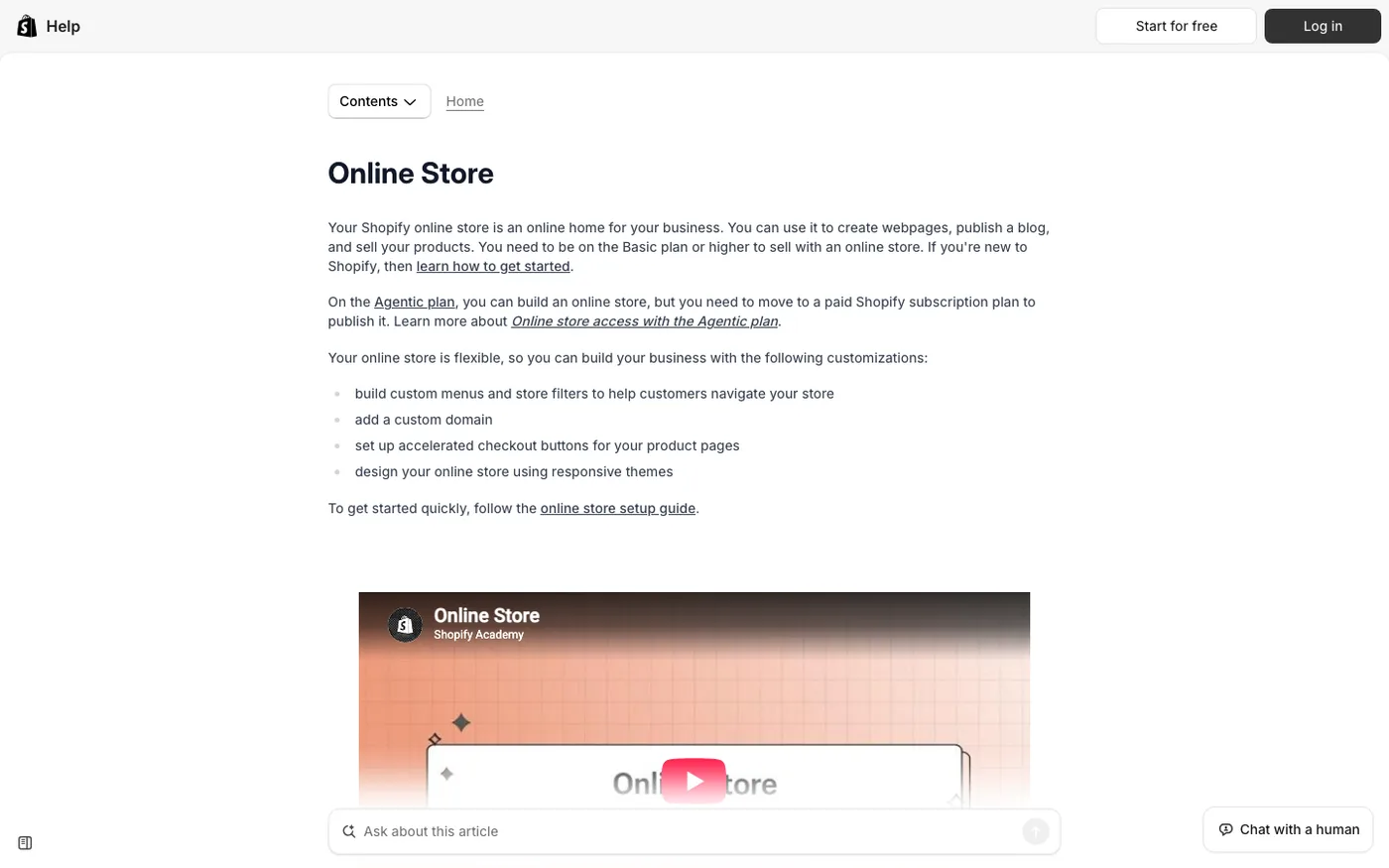
Shopify documents the same flow in its help center:
How to customize your Shopify coming soon page
The default password page is deliberately plain. Fine for a development store, a wasted opportunity for a launch. Here is how to make it earn the traffic you are about to send it.
Go to Online Store, then Themes, and click Customize on your active theme. At the top of the theme editor, open the page selector (the dropdown in the center of the top bar) and choose the password page. The editor now shows exactly what visitors see, and every section on it is editable.
What you can change depends on your theme, but most modern themes cover the essentials:
- Logo and brand colors. Upload the real logo, not a placeholder.
- Heading and message. This is your pitch, so treat it like one.
- Signup form. The theme's newsletter form, which is where launch emails come from.
- Social links. Pick one platform, not five.
- Background image or color. One strong image beats a slideshow.
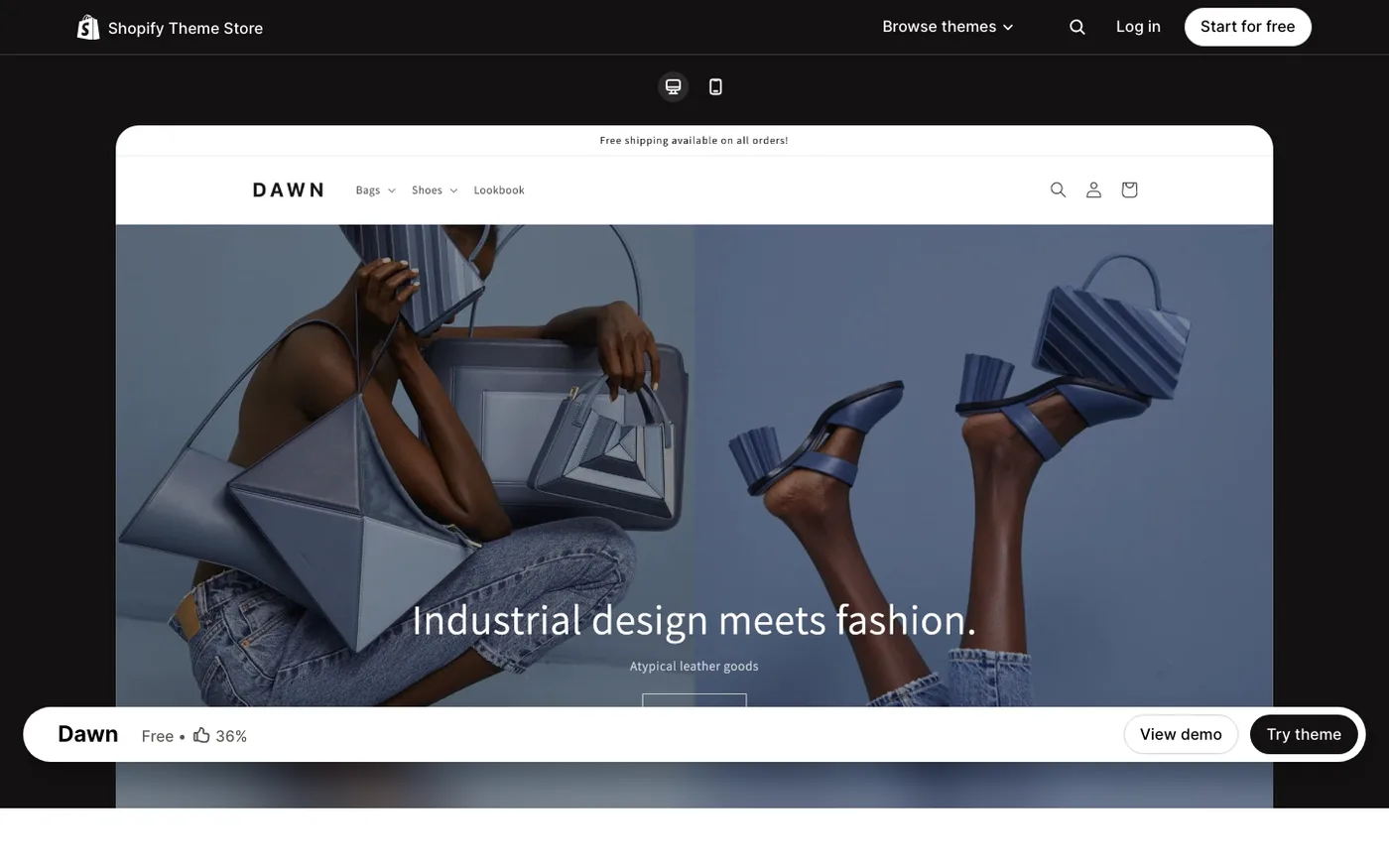
If your current theme is light on password page sections, the free Dawn theme covers everything above and is a safe default for a new store.
Four content decisions matter more than the rest:
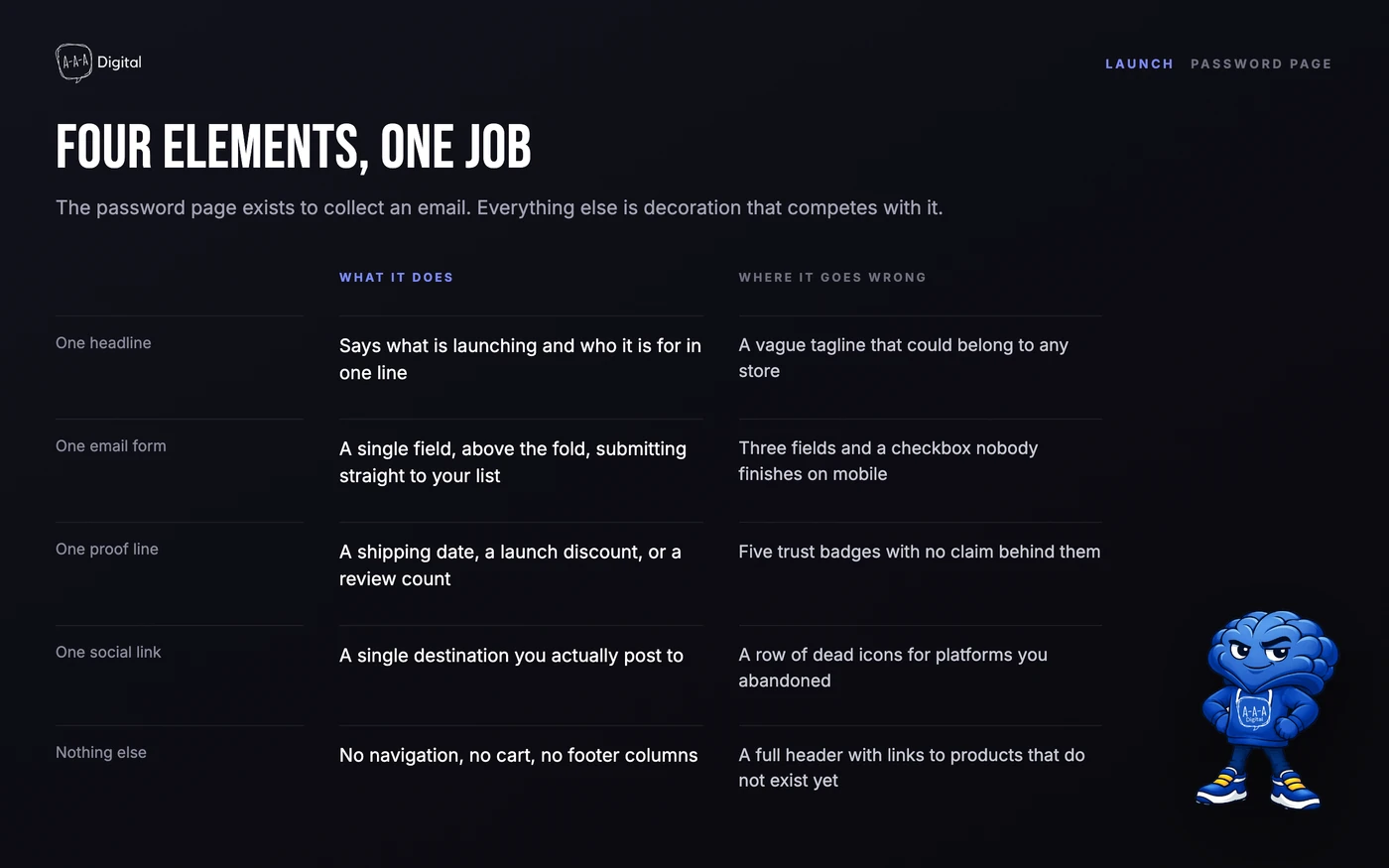
- Write a promise, not a placeholder. "Coming soon" tells a visitor nothing. "Single-origin coffee, roasted weekly, shipping across India this November" gives them a reason to hand over an email address.
- Make the email form the main event. One input, one button, nothing competing with it.
- Add one proof point. A waitlist count, a press quote, a founding-member perk. Small real numbers beat vague hype.
- Link one social profile. The one where you will actually post updates. Every extra outbound link is a leak.
Three things to skip: autoplay video (slow, and most pre-launch traffic is mobile), countdown timers with no real date (decoration, not information), and fake scarcity. A store that does not exist yet has no business claiming only 50 spots remain. Boring honesty converts better than borrowed urgency.
Capturing emails before launch
The signup form on the password page is your theme's newsletter form, and submissions land in your Shopify customer list. Consent is collected with the form, which keeps you on the right side of email rules and keeps your sender reputation intact. Resist the urge to switch off the consent checkbox for a bigger list.
Those customers are your launch list. When the password comes off, you email them first, before the ads, before the announcements, before the influencer posts. A store that collects 400 emails during a six-week build starts launch day with 400 warm visitors instead of zero.
The list does not email itself, so write the launch email before you need it. One subject line, one link, one clear reason to click. Keep it in drafts and send it the same morning the password comes off.
The launch-day checklist
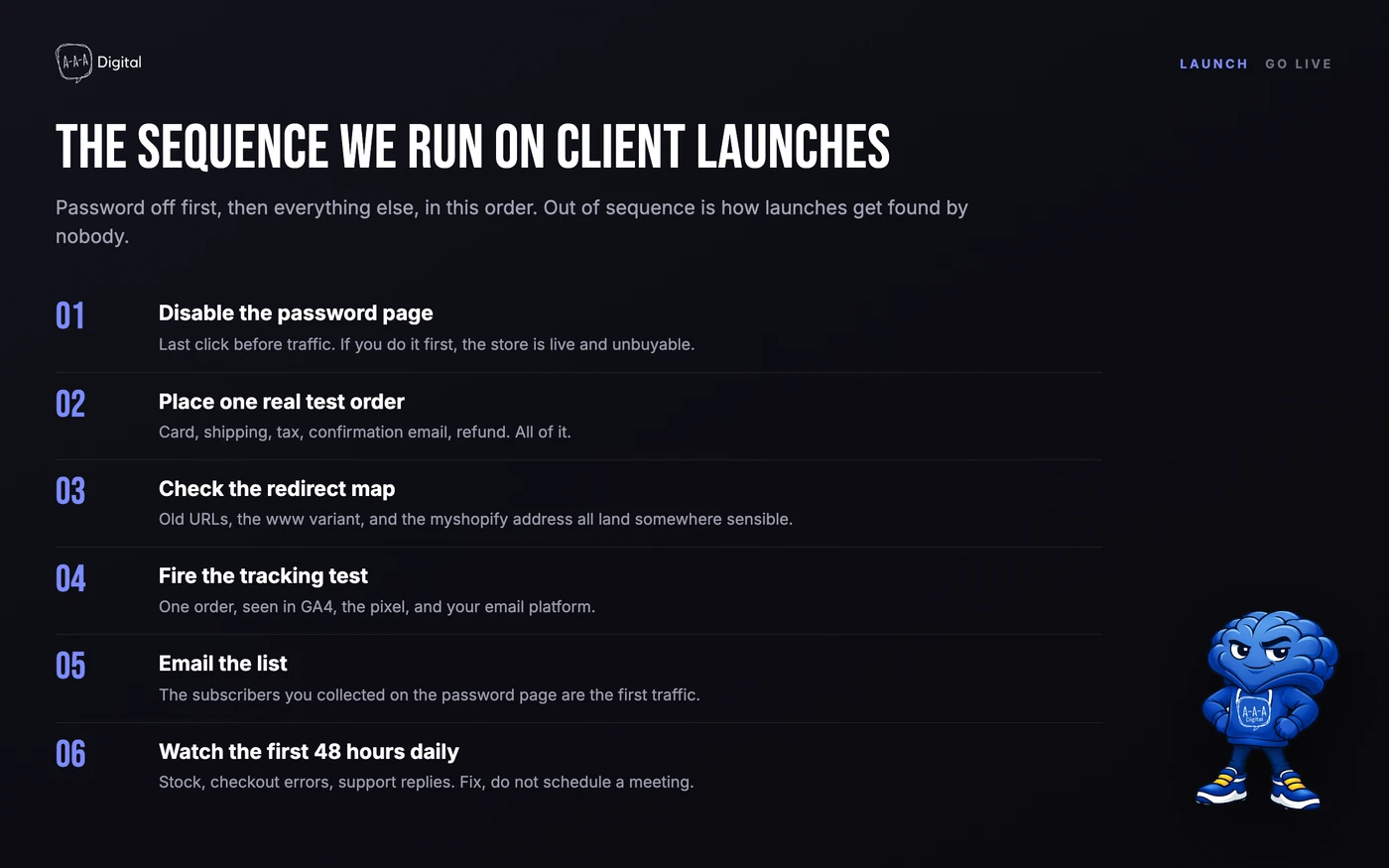
Removing the password takes ten seconds. Everything around it is where launches go wrong. This is the sequence we run for client stores, in order:
- Remove the password. Online Store, Preferences, untick the restriction. The store is live the moment you save.
- Place a real test order. Use a real card, run the full checkout, refund it immediately after. Bogus gateways test the code, not the money.
- Confirm analytics fire. GA4 DebugView should show your visit, and your Meta pixel, if you run ads, should register a test event. No data now means no attribution later.
- Send the launch email to the customer list you collected, with one link and a reason to click.
- Check the store on a phone. Most first-week visits are mobile. Tap through the homepage, a collection, a product, and checkout.
- Watch the week-one numbers. Sessions, conversion rate, page speed. Fix the worst leak first and ignore the rest until it is fixed.
The pre-launch version of this discipline, applied to search rather than checkout, is worth running in the same week the password comes off. Our Shopify SEO checklist walks through it.
When a coming soon app is worth it
The built-in password page covers most pre-launch needs, and we say that as an agency that would happily bill you for more. Reach for an app only when you need something the native template cannot do.
A countdown timer with a real, committed date is the most common reason. Waitlist mechanics are the second. Some apps add referral positions or milestone rewards, which suits brands with a genuine community angle. A few merchants simply want design freedom the theme editor does not offer.
What an app will not fix is the message. A weak promise with a countdown timer is still a weak promise. Get the copy right first, then decide whether the extra mechanics justify the monthly fee and the added page weight.
Frequently asked questions
How do I set a coming soon page on Shopify?
Enable password protection under Online Store, Preferences, then Password protection. Tick "Restrict access to visitors with the password" and save. That password page is your coming soon page; there is no separate feature.
Can I collect emails on a Shopify password page?
Yes. Add the newsletter signup form section to the password page template, and submissions go into your Shopify customer list with consent. You can email that list the day you launch.
How do I remove the password page?
Go back to the same Password protection section and untick the restriction. Your storefront replaces the password page the moment you save.
Is the Shopify password page indexed by Google?
It can be, as a thin page with very little content. While password protection is on, the rest of your store is not publicly browseable, so do not build a long-term SEO strategy on this phase. If you want the domain to rank after launch, do the real SEO work the moment the password comes off. That is the same pass that covers your password page foundations, and it is where our Shopify SEO work starts.
Can I use a coming soon page during the Shopify free trial?
Yes. The password page works on the free trial and on every paid plan, with no app required. You only need to pick a plan when you are ready to remove the password and go fully live.
The short version
A coming soon page sounds like a courtesy. Run properly, it is the first marketing asset your store earns: a working signup form, a tested promise, and a warm list waiting for launch day. The feature is already sitting in your admin, and now you know where.
If you would rather have a team run the build, the copy, and the launch sequence for you, that is most of what we do as a Shopify agency. Get in touch and we will tell you honestly whether your timeline needs us.
