Two minutes into Google, most store owners learn the wrong lesson: they changed the store name in settings, refreshed the storefront, saw the new name on the browser tab, and assumed the job was done. Then a customer sends a screenshot of an order email still signed with the old name, and the myshopify address they never noticed is suddenly a branding problem.
The two-minute version is real. The full version has five steps, and the last two are the ones that protect your rankings. This is the whole checklist, in the order that avoids rework.
Your store has three names
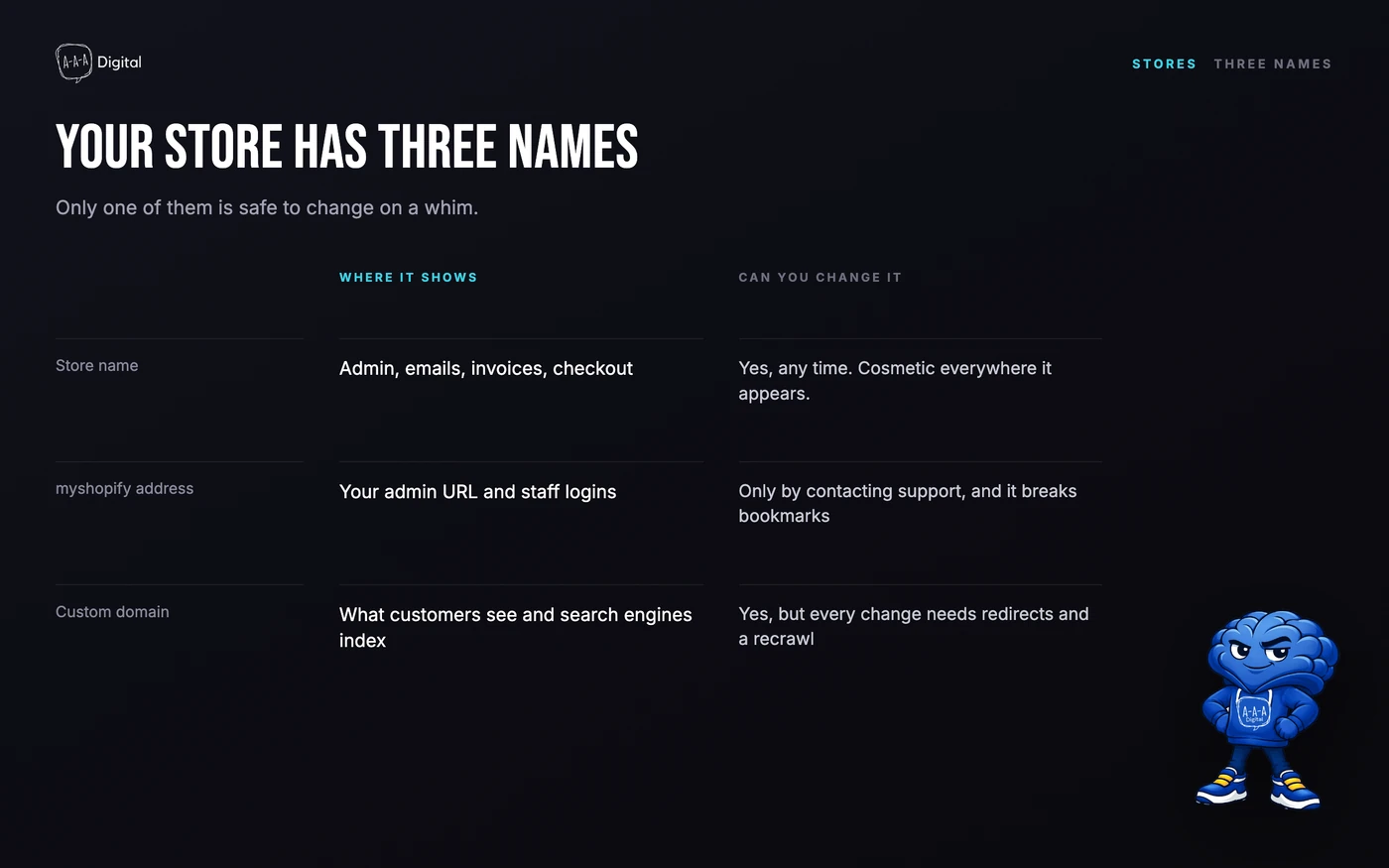
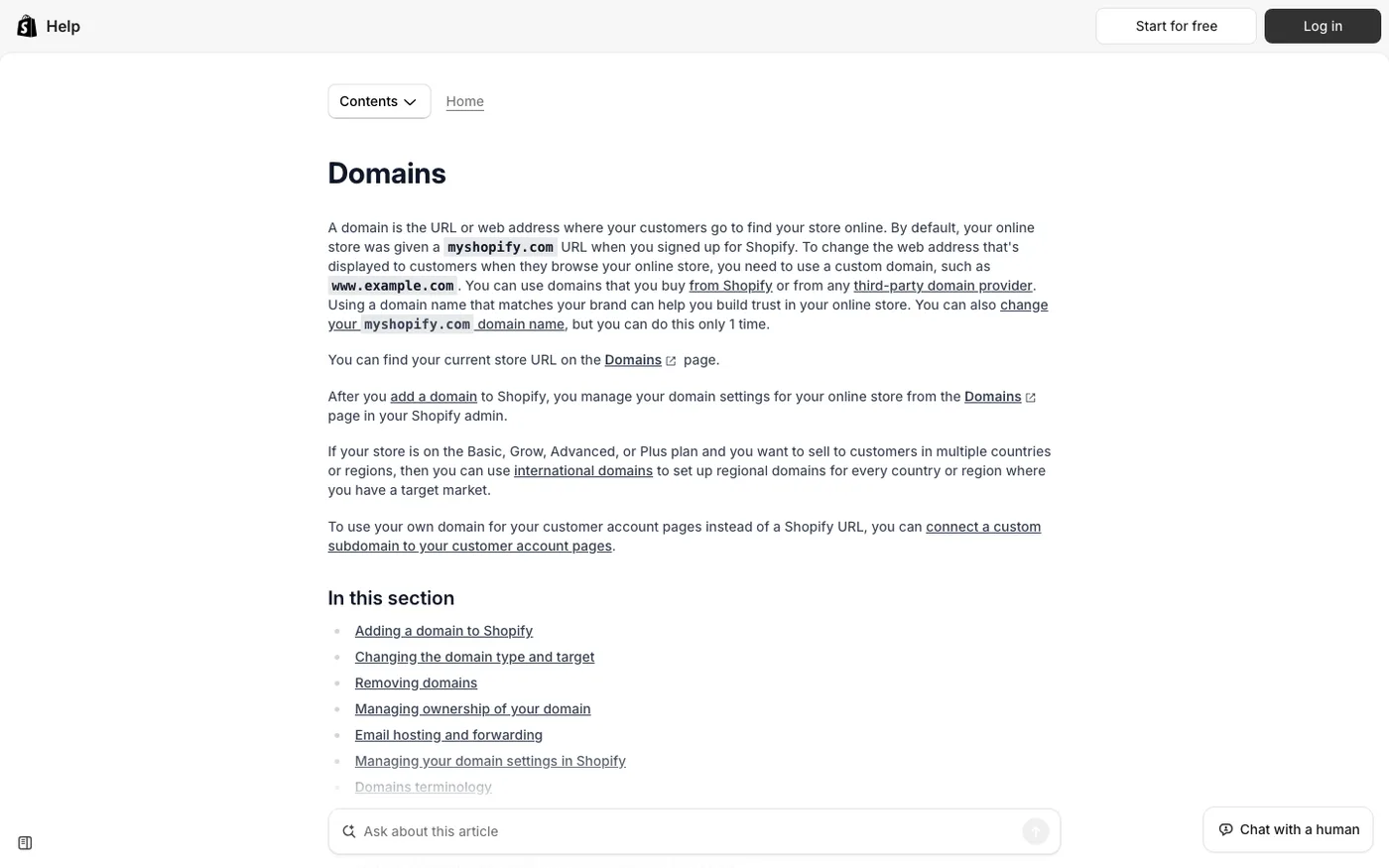
Half the confusion around renaming lives in the fact that a Shopify store carries three different names, and changing one does nothing to the others:
- The store name. The display name in Settings > General. Buyers see it on the browser tab, in checkout, on order confirmation emails, and on invoices. You can change it any time.
- The myshopify.com subdomain.
your-store.myshopify.comis the permanent technical address assigned when the store was created. Shopify does not let you edit it after creation. It keeps working in the background no matter what you call the store. - The custom domain.
yourbrand.com, purchased through Shopify or any registrar and connected to the store as the primary domain. This is the public face of the store, and unlike the myshopify address, you fully control where it points.
If your actual problem is "I want the address to say something else," the store name is not the fix. The custom domain is, and the myshopify subdomain is only a problem when it is being used as the public address at all, which it should not be.
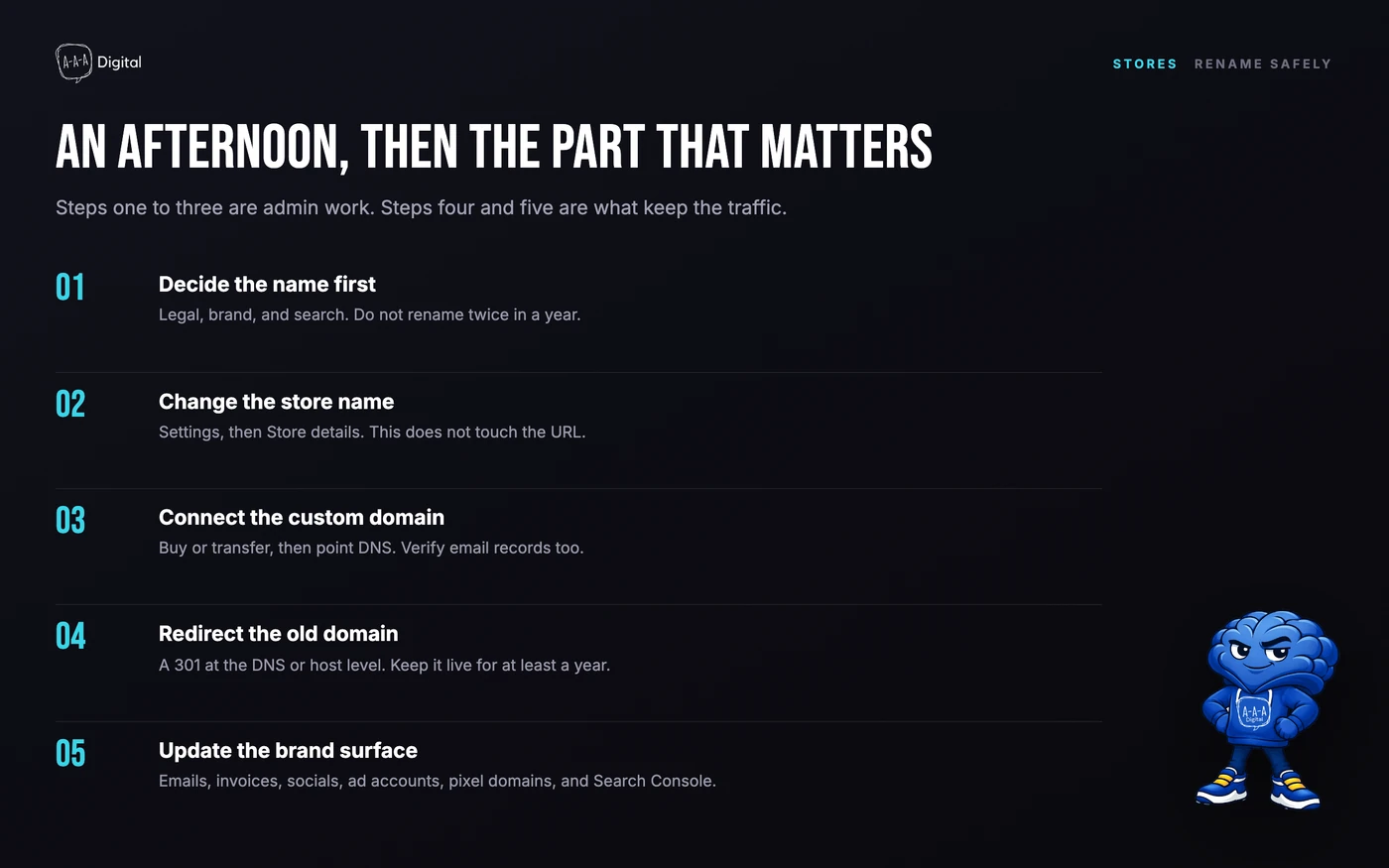
Step 1: Decide the name before you touch settings
Check that the .com is available, and ideally the matching handles on the platforms your customers use. Renaming a store twice in a month is worse than renaming it once slowly: every change ripples through checkout, email sender names, packaging, and ad account branding, and customers who saw both names wonder which one is real.
Step 2: Change the store name
In your Shopify admin, go to Settings > General. The first field is Store name. Change it and save.
The new name appears immediately on the storefront tab, in checkout, and on transactional emails. No propagation delay, no cache to clear. Two minutes, as advertised.
Step 3: Secure and connect the custom domain
If the new brand name comes with a new domain, connect it now: Settings > Domains, then either buy the domain through Shopify or connect one from a registrar like Namecheap or GoDaddy using Shopify's provided DNS records. Once connected, set it as the primary domain so every storefront link serves from it.
Shopify issues SSL automatically once DNS propagates, usually within a few hours, occasionally a day. Until the certificate is live, the domain will show a security warning; do not run ads to it during that window.
Step 4: Redirect the old domain
If the rebrand also changes the domain (oldbrand.com to newbrand.com), this is the step that decides whether your Google traffic survives the move:
- 301 redirect every meaningful URL on the old domain to its counterpart on the new one. Product to product, collection to collection, page to page.
- Keep the redirects live for at least a year. Most SEO value transfers within weeks, but Google recrawls slowly on small stores, and early removal strands long-tail rankings.
- Update the sitemap in Google Search Console and request recrawl of the homepage.
Shopify's native URL redirects (Settings > Domains, or the bulk redirect importer under Navigation) handle store-level redirects well. Domain-to-domain migration with catalog parity is a bigger job, and it is exactly the one where a missed redirect costs rankings that took a year to earn. Our guide to preserving SEO during a replatform covers the redirect mapping process in detail, and our Shopify SEO service handles it when the catalog is large enough that manual mapping is not realistic.
Step 5: Update the brand surface
The name change is only finished when every place a customer meets the brand agrees:
- Logo, favicon, and browser tab icon
- Email sender name and footer in your email platform
- Invoices and packing slips
- Social media handles and bios
- Meta and Google ad account names and display URLs
- The Buy Button or Shop channel listings that echo the store name
Skip this pass and the store will feel unfinished in a way customers cannot name but definitely notice.
What about the myshopify subdomain?
It cannot be changed, and for most stores it does not matter. As long as the custom domain is primary, customers never see it. It surfaces in three harmless places: some API calls, a few admin screens, and any old links that predate the custom domain.
If the old myshopify address is genuinely embarrassing (a typo of a previous brand, an abandoned product line), the honest fix is a new store with a data migration, not a rename. That is a real project: products, customers, orders, apps, and theme all move, with redirects from the old store's URLs. It is worth doing when the rebrand is total; it is overkill when the custom domain already says what you want the world to see.
FAQ
How do I change my Shopify store name? Go to Settings > General in your Shopify admin and edit the Store name field. The change appears immediately on the storefront, checkout, and order emails.
Does changing my store name change my myshopify.com URL? No. The myshopify.com subdomain is permanent and cannot be edited. Your public address is the custom domain, which you control separately under Settings > Domains.
Can I change my myshopify domain? Not yourself, and only in narrow circumstances through Shopify support. If the address itself must change, the practical route is a new store with a data migration and redirects from the old one.
How do I change my Shopify domain? Buy a domain in Shopify (Settings > Domains) or connect one from an external registrar, then set it as the primary domain. Shopify provisions SSL automatically.
Will renaming my store hurt my SEO? Renaming the store name does not affect rankings. Changing the primary domain without 301 redirects does. Map old URLs to new ones, keep redirects live, and resubmit the sitemap in Search Console.
How long does a domain change take? DNS connection is usually under an hour; SSL follows within a few hours to a day. Redirect mapping and search-console updates are same-day work on a small catalog.
A name change is one of the few store edits where the risky part is invisible until months later. If the rebrand also moves domains or platforms, book a free strategy call and we will scope the redirect and migration work before anything goes live.
