
At some point every growing store faces the same access problem: a developer, a designer, or an agency needs into the admin, and the choices are a staff account, sharing the owner login, or something called a collaborator account most merchants have never clicked.
Sharing the owner login is how stores lose domains to a rogue contractor. Staff accounts are for employees, cost money on most plans, and usually hand over more than a freelancer needs. Collaborator access is the third option Shopify built for exactly this moment, and it is free, granular, and revocable in one click. Here is how to use it without creating a different security problem.
Staff account or collaborator?
Shopify splits admin access into two buckets, and the split matters:
Staff accounts are for your employees. They come in limited numbers per plan, additional seats can cost money, and they support full admin roles up to store owner. Use them for people on payroll doing daily work: support agents, operations staff, your in-house marketer.
Collaborators are for people outside the company: agencies, freelancers, partners. Collaborator access is unlimited and free, never consumes a staff seat, and carries only the granular permissions you approve. Shopify requires collaborators to work through the Partner ecosystem, which also means their activity is attributable and their access is easy to audit.
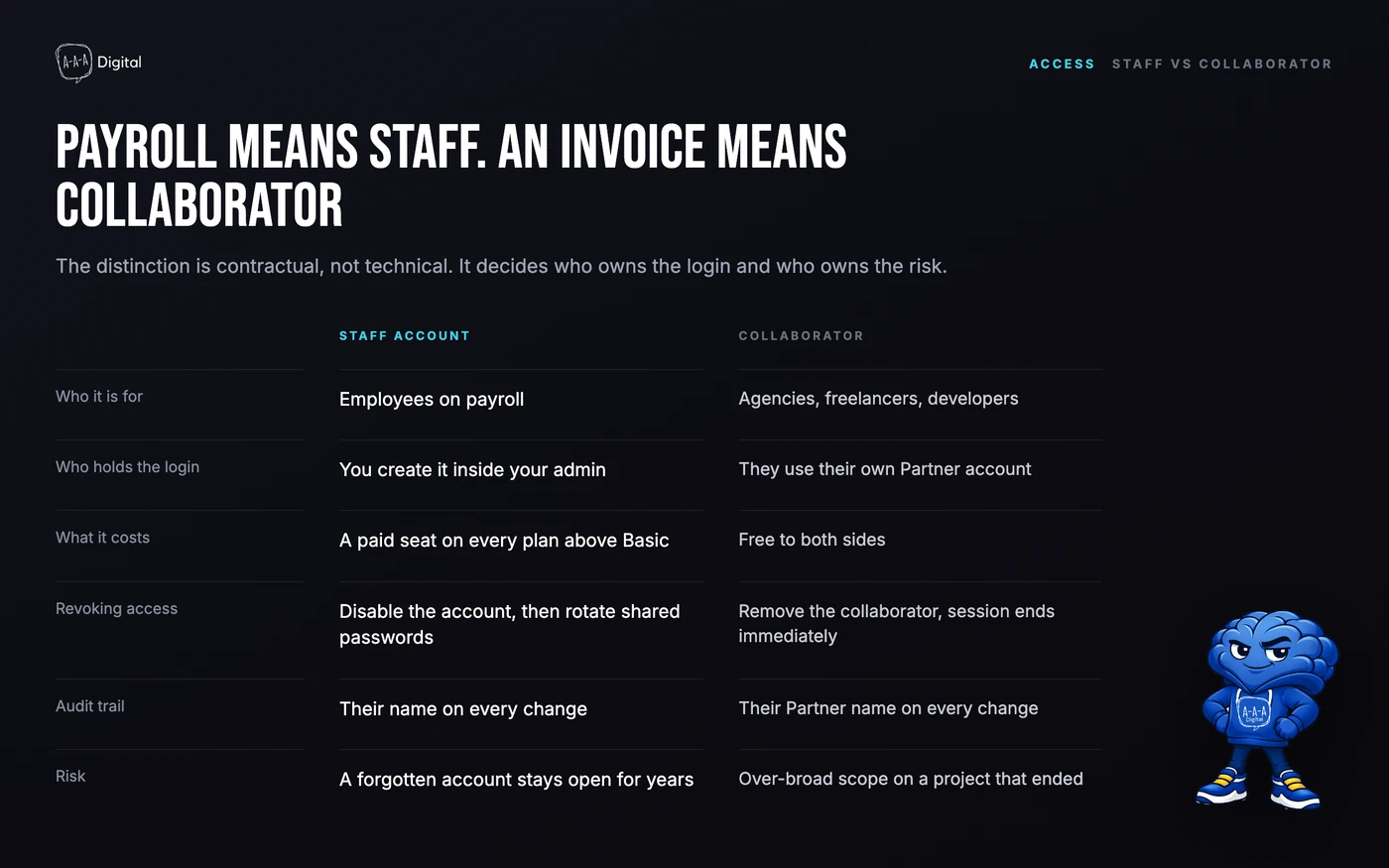
The question "shopify collaborator vs staff" is really a question about the relationship. The moment an agency asks to be added as a staff member, ask why. The answer is usually that they have not bothered to set up a Partner dashboard, which tells you something about how they work.
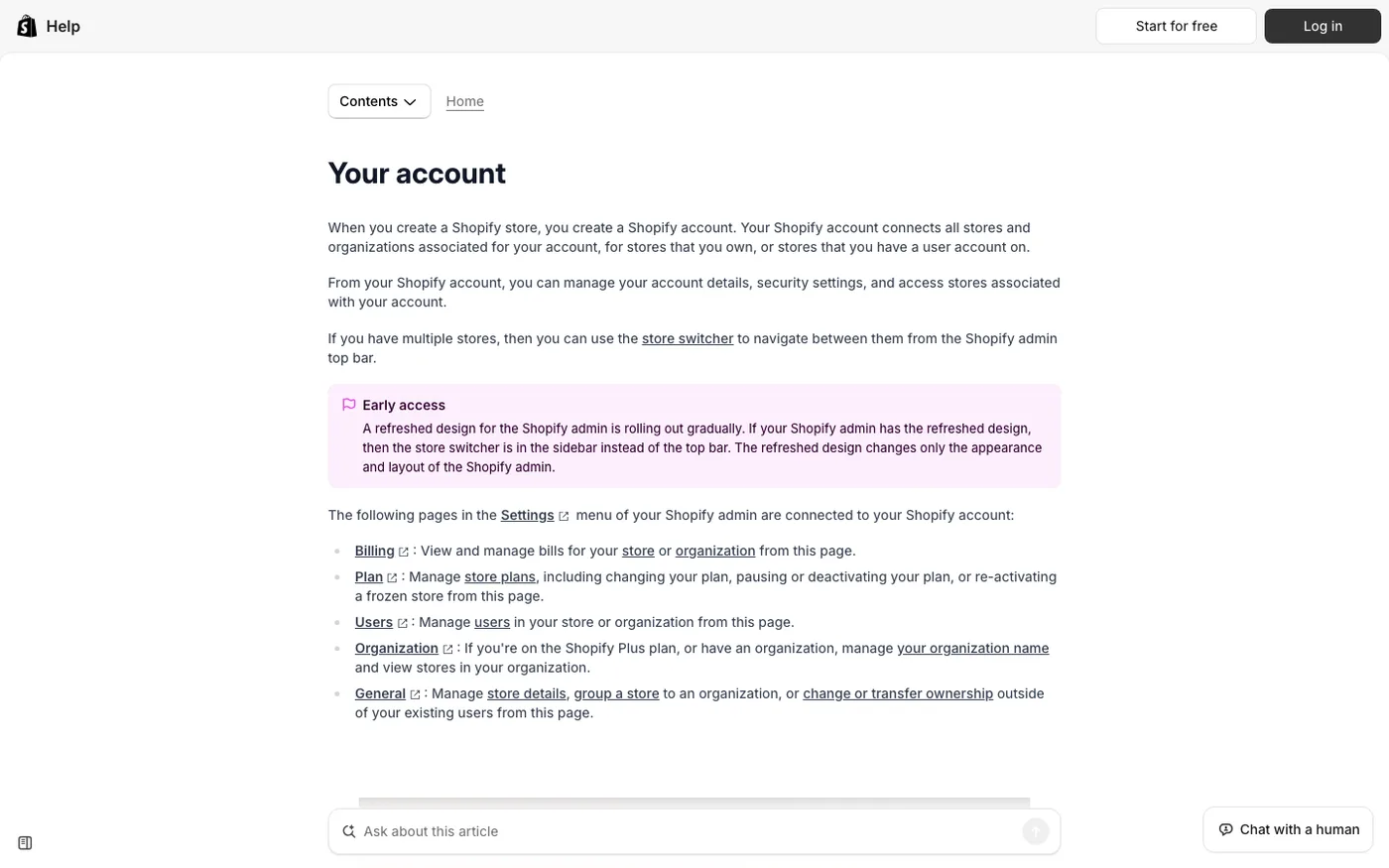
How the collaborator request flow works
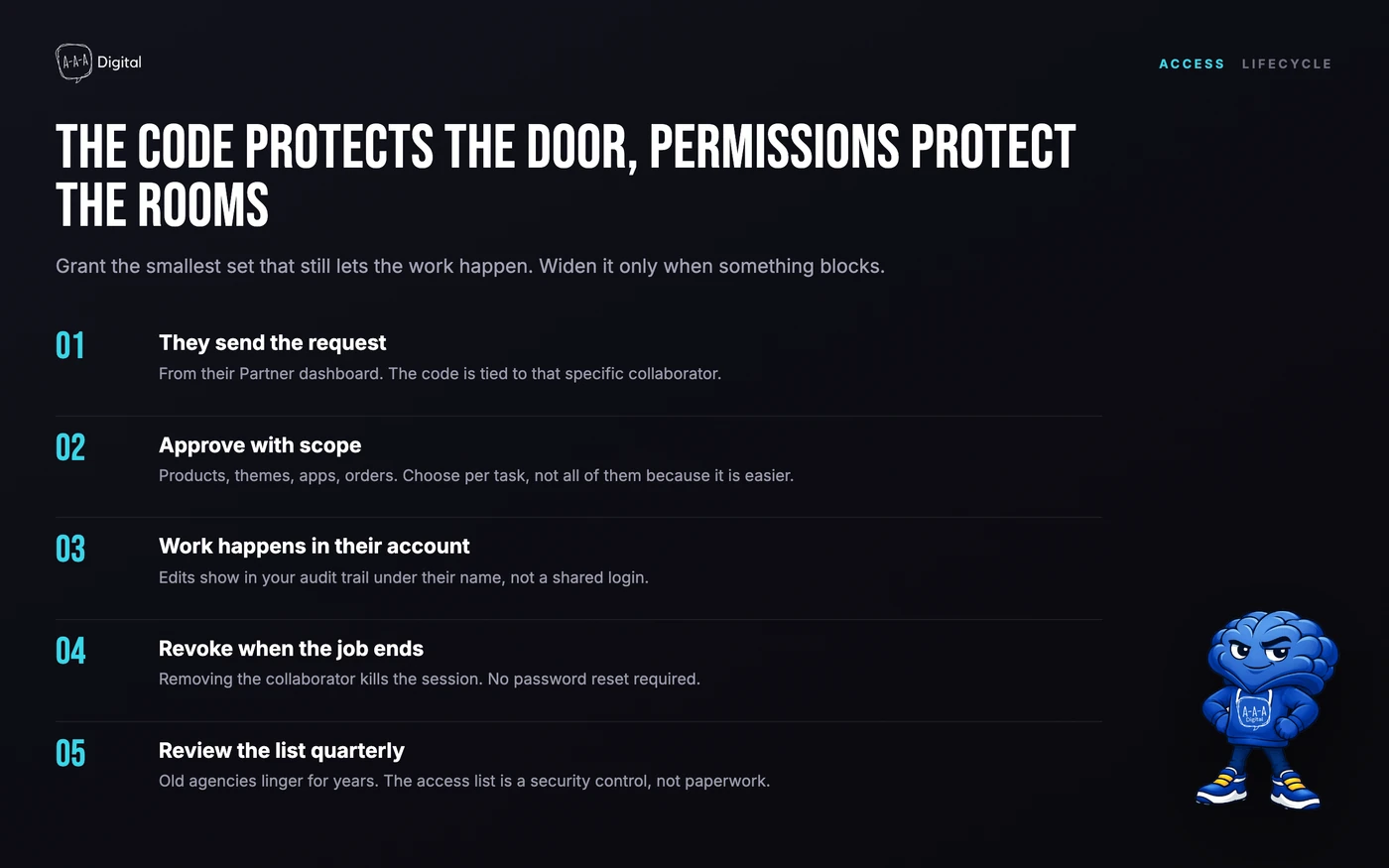
Collaborator access is request-based. You do not create the account; the partner requests it, and you approve or deny. The full sequence:
- Set a collaborator request code. In your admin, go to Settings > Users. There you will find a four-digit collaborator request code. This code is the lock on the door: without it, nobody can request access to your store.
- Share your store URL and the code. Send your
your-store.myshopify.comaddress plus the code through a channel you control, an email thread, a project management tool, a call. Do not post either in a public form or chat. - The partner requests access. From their Shopify Partner dashboard, they enter your store URL and code, then request the specific permissions their work needs: themes, apps, settings, marketing, and so on.
- You approve and trim. The request lands in your admin under Settings > Users > Collaborators. Approve it, then look hard at the permission list. Grant what the scope requires and nothing more. A designer needs themes, not customers. An integrator may need apps and settings, not orders.
- Revoke when the work ships. Removal is instant and painless. Make it part of project sign-off rather than something you remember during an audit six months later.
Which permissions to grant
Least privilege is the whole game here. Some guidance by role:
- Theme or design work: Themes and content. No customer data, no orders, no apps unless the design includes app blocks.
- App integration or custom development: Apps, settings related to the integration, sometimes customers for testing. Ask for a list of the apps they plan to install before approving.
- Marketing or email: Marketing sections and relevant apps. Not settings, not billing, not themes.
- CRO or analytics work: Analytics, relevant apps, and theme access if they run experiments. Our own CRO engagements work this way on client stores.
If a partner's requested permission list is longer than their scope, that is a conversation to have before approval, not after something breaks.
Security rules that save stores
Three rules catch almost every bad outcome:
Rotate the request code after each engagement. The code is not a secret you set once. Changing it takes ten seconds and invalidates every stale request path.
Review the collaborator list quarterly. Open Settings > Users and ask one question per name: should this person still have access today? Agencies change staff; freelancers move on; projects end. Revocation is instant, so there is no excuse for zombie access.
Never share the owner login. Not for convenience, not for "just a quick fix." Owner credentials bypass every safeguard in this article, and recovery after an owner-level mistake ranges from painful to impossible.
What collaborators can and cannot do
Collaborators work inside a bounded box. They can edit the areas you granted, install apps if given app permissions, and request expanded access, which you must approve. They cannot manage your staff accounts, transfer store ownership, or see billing details. Owner-level actions stay with the owner, which is precisely the boundary you want with external help.
FAQ
What is a collaborator on Shopify? A free, request-based access level for agencies, freelancers, and partners, managed through the Shopify Partner ecosystem. Collaborators do not consume staff seats and carry only the permissions you approve.
How do I add a collaborator to my Shopify store? Set a collaborator request code under Settings > Users, share your myshopify.com URL and the code with your partner, and approve their request in admin when it arrives.
What is the Shopify collaborator request code? A four-digit code that acts as a lock on collaborator access. Anyone requesting access to your store needs it, which prevents strangers from requesting entry.
Do collaborators cost money? No. Collaborator access is free and unlimited on every plan. Staff accounts are the ones with seat limits.
Can a collaborator see my customers and orders? Only if you grant those permissions. You choose the permission set at approval, and you can change or revoke it at any time.
How do I remove a collaborator? Settings > Users > Collaborators, then remove. Access ends immediately; nothing they built disappears.
Access hygiene sounds like a small thing until the day it matters. If you want a team that works inside these guardrails by default, that is how our Shopify experts operate on every client store, scoped access, visible work, revoked at handover.
