Two years ago, a client of ours, a US-based jewelry brand, noticed something odd in their analytics that led to the best Shopify multi-currency win we've had. Nearly 20% of their traffic came from the UK, Australia, and Germany, but those visitors converted at roughly a third the rate of US shoppers. We dug into it, and the problem was embarrassingly simple: every price on the site was in USD. A shopper in Manchester would see a $142 necklace with no idea what that meant in pounds, plus shipping calculated at checkout in dollars with unknown duties.
We turned on Shopify Markets, added localized currencies and pricing, and within about 60 days, conversion from those three regions roughly doubled. Not because we did anything clever. Because we stopped forcing international customers to do math at the checkout.
That experience is the reason we consider Shopify multi-currency setup one of the highest-leverage changes a growing store can make. Getting Shopify multi-currency right sounds simple. Turn it on, pick some exchange rates, done. But the details decide whether it lifts conversion or quietly leaks revenue. In this guide, we'll walk through the exact setup (settings paths included), and cover the tradeoffs most tutorials skip. You'll learn when Markets is enough, when you need Shopify Payments, how international pricing actually works, and the common mistakes that make stores show the wrong currency (or none at all) to overseas visitors.
What Shopify Markets Actually Does
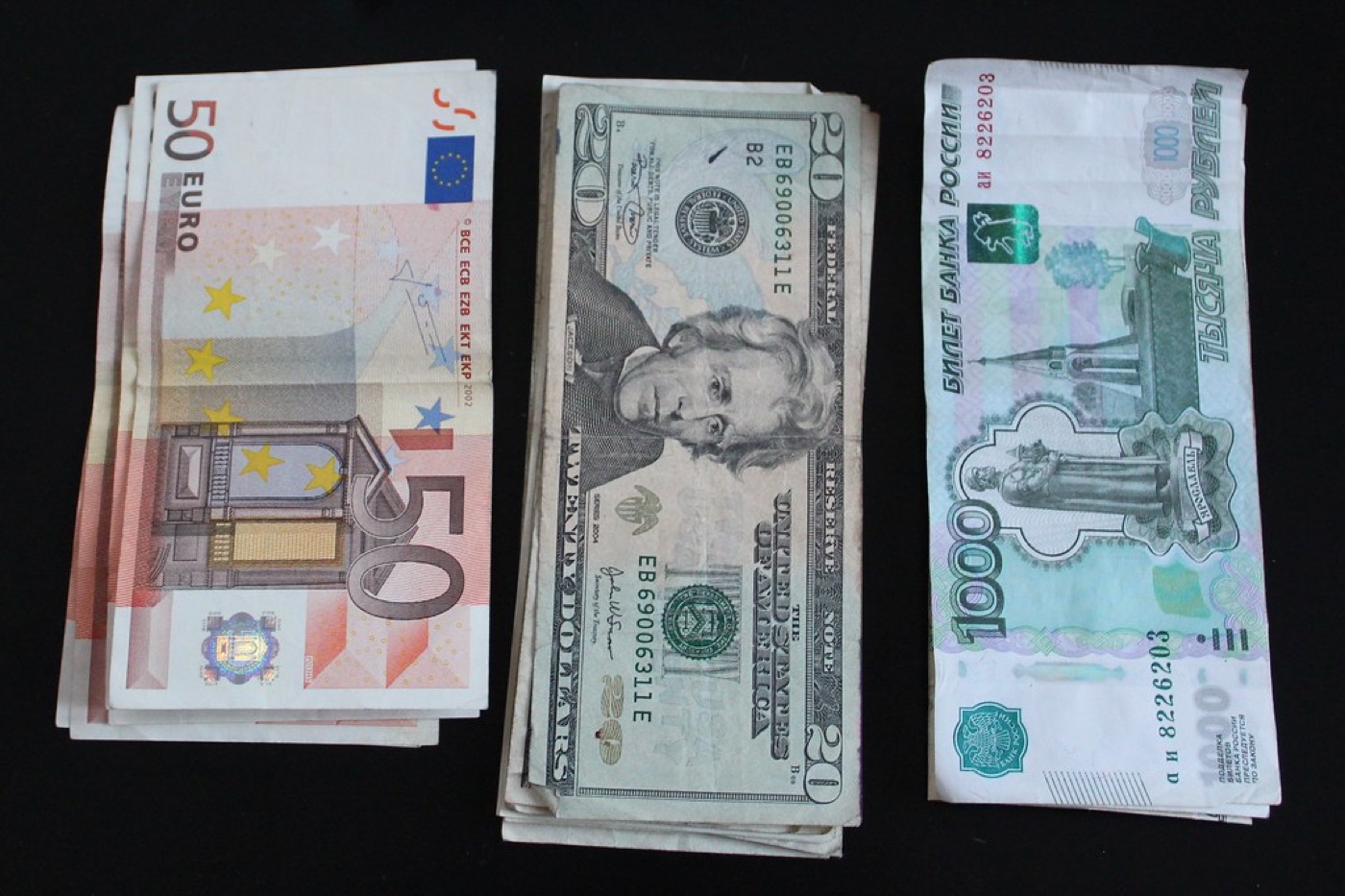
Shopify Markets is Shopify's built-in framework for international selling, and it has replaced most of the third-party apps that used to handle currency conversion. It bundles four things that used to require separate solutions:
- Local currency display: customers see prices converted to their local currency based on IP geolocation
- International pricing: you can set different fixed prices (or percentage adjustments) per market
- Local domains or subfolders: e.g.
yourstore.co.ukoryourstore.com/en-gb - Market-specific settings: catalogs, payment methods, and shipping profiles per region
Here's the critical constraint that trips people up: currency conversion and local payment methods require Shopify Payments. If you're on a third-party gateway, customers will still see their local currency on product pages (converted from your base currency), but checkout happens in your base currency. That's a conversion killer. In our experience, showing GBP prices and then charging USD at checkout loses you 15–30% of those international orders at the final step.
So step zero: if international sales matter to you, and Shopify Payments is available in your country, enable it. Settings → Payments → Activate Shopify Payments. If it's not available in your region, consider a gateway like Stripe as your primary processor where eligible, and accept that your currency localization will be display-only until you can.
Setting Up Shopify Multi-Currency: Step by Step
This is the workflow we follow on every international build. It's straightforward, but the order matters.
Step 1: Define your markets
Go to Settings → Markets. Shopify automatically creates a "Primary market" (your home country and base currency). You'll build additional markets on top of it.
Click Add market and group countries sensibly. Don't create one market per country unless you have a reason, because more markets means more price management overhead. A typical starting structure for a US store:
- Canada (CAD)
- United Kingdom (GBP)
- European Union (EUR, grouped)
- Australia/NZ (AUD)
One decision matters here: which countries go in which market determines the currency they see. If you put Sweden and the UK in the same market, they both see the same currency. Group by currency zone, not geography.
Step 2: Enable local currencies
Inside each market, go to the Products and pricing section. Toggle on Show prices to customers in their local currency. Shopify uses its own exchange rate service to convert from your base currency.
You can let Shopify manage exchange rates automatically (rates update through the day) or set rates manually. We almost always recommend automatic. Manual rates are useful only when you want to build in a buffer against currency swings, which you can also do with price rounding (next step).
Step 3: Configure price rounding
Unrounded converted prices look amateur. A $39 product becomes £30.87. Weird, and it undercuts your pricing psychology. Markets lets you set rounding rules: round to the nearest whole unit, .90, .95, .99, and so on.
Go to Settings → Markets → [Market] → Products and pricing → Price rounding. Our default for most stores:
- Round to .99 for consumer products under $100
- Round to .00 for premium items where a $499 price signals positioning
- Apply rounding with duties and import taxes included if you've enabled those, otherwise the rounding looks wrong at checkout
Step 4: Set up international pricing (optional but powerful)
Price rounding is automatic conversion with makeup on. True international pricing lets you set a specific price per market, either as a fixed amount or a percentage adjustment over the converted price.
This is where the real strategy lives. Common reasons to adjust per-market pricing:
- Margin protection: absorbing VAT-inclusive pricing, higher shipping subsidies, or local duties
- Market positioning: a mid-tier price in the US might be premium in a price-sensitive market
- Channel consistency: matching prices when you also sell wholesale or through local retailers
To set this up, in Products and pricing for a market, switch from automatic to percentage adjustment or use the bulk editor / CSV upload to set fixed prices per product. Be careful with fixed prices: they don't auto-update when your base price changes. We manage fixed international prices in a spreadsheet and re-import after any base price change, because forgetting even one product creates a pricing mismatch a customer will screenshot and send to support.
Step 5: Set local domains or subfolders
Still inside the market settings, under Domains and SEO, choose between:
- Subfolders:
yourstore.com/en-gb. Our default recommendation. Easy to manage, consolidates SEO authority, and works fine with hreflang - Subdomains:
uk.yourstore.com. Fine, but splits authority slightly - Top-level domains:
yourstore.co.uk. Strongest for local trust and local SEO, but you must own and connect each domain, and SSL/redirect management gets tedious
If you already get meaningful organic traffic from a target country and you plan to invest in content for that market, a country TLD can be worth it. For most stores doing their first international push, subfolders are the right call. This setup also feeds directly into your international SEO. Getting the domain structure and hreflang right together saves a painful cleanup later, which is where our Shopify SEO work usually picks up after a Markets rollout.
Step 6: Configure payments, shipping, and duties per market
Back in each market, under Payments, enable market-appropriate payment methods. iDEAL matters for the Netherlands, Bancontact for Belgium, and so on. Shopify surfaces these automatically through Shopify Payments.
Set up shipping profiles in Settings → Shipping and delivery that match your market structure, and decide on duties: either charge duties at checkout (recommended; it kills the "surprise customs fee" complaint) or let customers handle import costs on delivery (cheaper for you, brutal for reviews).
Step 7: Test like a customer, not like the store owner
Geolocation means you can't trust what you see. Test with a VPN or Shopify's market preview (a globe icon appears in your storefront when Markets is active). Check every surface: product pages, collection pages, cart, checkout, and order confirmation emails. Currency display bugs love hiding in email templates.
The Mistakes We See Repeatedly
Enabling currencies without Shopify Payments. As covered above: display-only localization that breaks trust at checkout. This is the single most common mistake.
20 markets on day one. Each market adds pricing, shipping, and content overhead. Start with 2–3 markets where you already have demand signals (check your analytics for non-domestic traffic and orders), prove the model, then expand.
Forgetting apps that hardcode currency. Some older review apps, subscription apps, and page builders inject prices in your base currency, ignoring Markets. After setup, crawl your site with prices visible and look for mixed-currency displays. We've had subscription apps show USD on a EUR storefront more than once.
Not syncing fulfillment. If you promise 3-day delivery to Germany but ship from a US warehouse with 12-day transit and customs delays, currency localization won't save you. Consider Shopify's fulfillment network or a 3PL with EU presence once a market justifies it.
Ignoring returns. International returns are expensive. Decide your policy per market before you launch, not after the first angry email.
When to Skip the Built-In Setup
Multi-currency through Markets isn't for everyone. If you're under ~$50K in annual revenue with minimal international traffic, a currency switcher and patience is a reasonable DIY approach. If you're selling subscription-heavy products, verify your subscription app handles multi-currency billing. Several still bill in base currency regardless of storefront display, and that's a support ticket generator.
And if you're on Shopify Plus, Markets Pro is worth a look for managed duties and tax compliance, but for stores under eight figures, standard Markets plus a good tax app (like Avalara or the built-in tax settings) covers nearly everything.
Frequently Asked Questions
Can I use Shopify multi-currency without Shopify Payments?
Partially. Product and collection pages can display converted prices in local currency with any setup, but checkout always happens in your store's base currency unless Shopify Payments (or the applicable local gateway) is active. For most stores, that's not a real solution. Customers notice the currency change at the payment step and abandon.
How many currencies can I have on Shopify?
Through Shopify Markets you can sell in many markets and currencies; in practice, we recommend 3–5 markets at launch. More markets mean more exchange-rate exposure, more pricing management, and more customer-service complexity. Scale markets as demand justifies them, not all at once.
Does multi-currency affect my SEO?
The currency itself doesn't, but the market structure behind it does. Markets can create subfolders per market (like /en-gb/), which changes your URL structure and requires hreflang tags so Google serves the right version to each region. Skipping that step causes duplicate-content issues and wrong-region rankings. A fixable problem, but one that's much cheaper to get right at launch.
Can I set different prices in different countries?
Yes. Shopify Markets supports percentage adjustments or fixed prices per market, set under each market's Products and pricing section. Fixed prices are managed per product (via bulk editor or CSV import). Keep in mind they don't auto-update when your base price changes, so build a process around price updates.
What happens to exchange rate fluctuations?
With automatic conversion, prices move with the market. A strong euro makes your products more expensive in the EU. Price rounding smooths this visually, and percentage adjustments give you a margin buffer. If currency volatility is a real concern for your margins, set manual exchange rates and review them monthly.
Get Help With This
International expansion touches currency, payments, shipping, taxes, and SEO all at once, and the settings interlock. If you'd rather have a team that's done this 200+ times handle it, get our Shopify development team to set up your multi-currency and international pricing correctly the first time.
