Breadcrumbs are one of those small Shopify fixes that punches way above its weight. Shopify breadcrumbs help Google understand your site structure, they push your pages toward sitelinks and rich results, and they give visitors a one-click escape hatch when they land deep in your catalog. Google has treated breadcrumb markup as a ranking input for years, and the click path data backs it up: stores with visible breadcrumbs see fewer pogo-sticks back to search results.
Yet most Shopify themes ship with breadcrumbs disabled, half-broken, or missing structured data entirely. Apps that "fix" this charge $5 to $15 a month for what amounts to thirty lines of code.
You don't need an app. In this guide, we'll walk you through adding breadcrumbs to your Shopify theme the way we do it on client stores: one code edit, proper structured data, and the gotchas that break most DIY attempts.
What Shopify Breadcrumbs Actually Do for Your Store
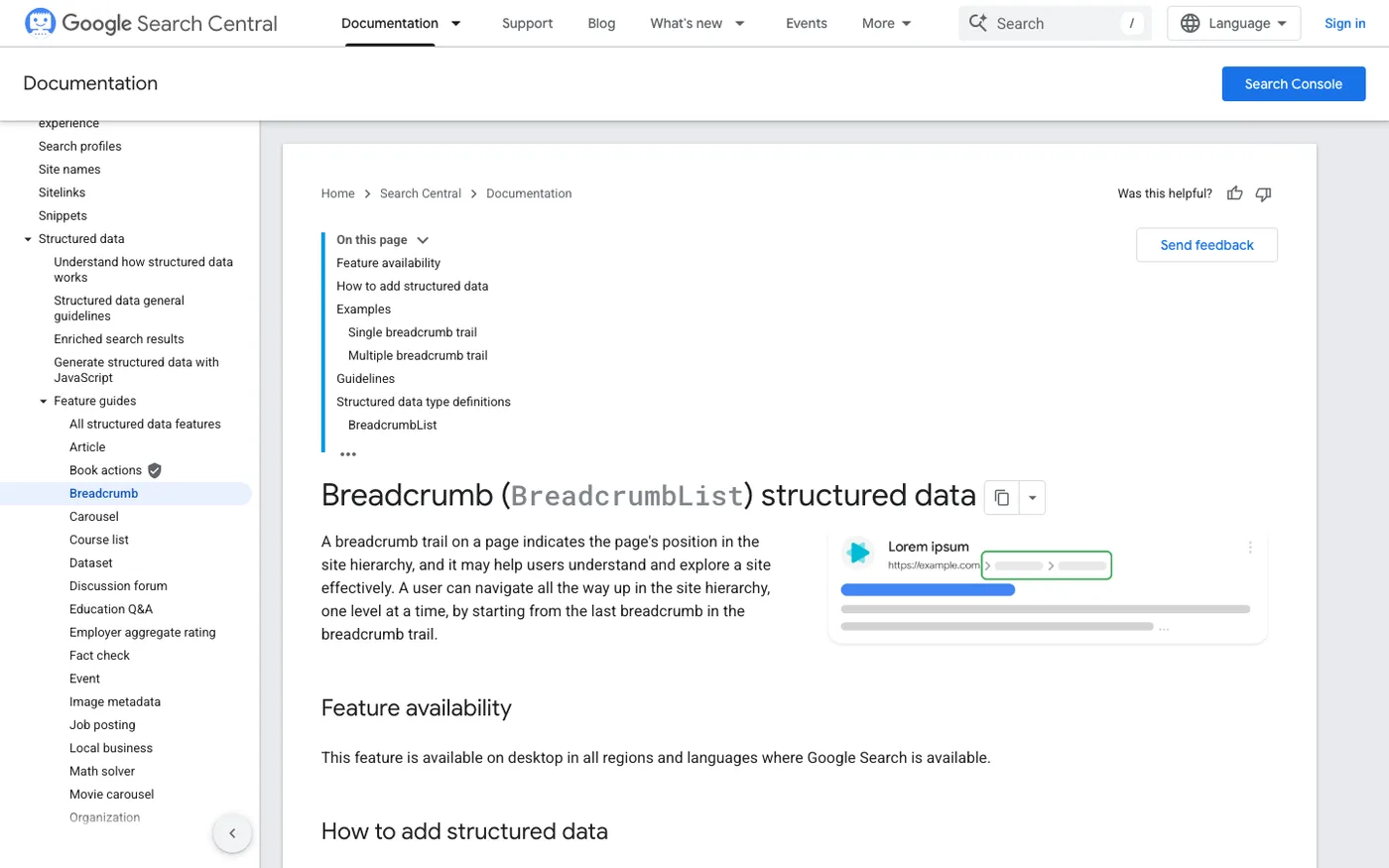
A breadcrumb trail shows where the current page sits in your hierarchy, like this:
Home > Women's Clothing > Dresses > Linen Midi Dress
Three things happen when you implement them properly.
First, navigation improves. A visitor who lands on that linen dress from a Google search can jump straight to your entire dresses collection with one click. That's an internal link most visitors would never otherwise find.
Second, Google can replace your URLs with breadcrumbs in search results. Instead of showing yourstore.com/collections/women/products/linen-midi-dress, Google shows the breadcrumb path, which reads cleaner and tends to earn more clicks.
Third, your site architecture gets clearer to crawlers. Google uses breadcrumb structured data to understand how your collections and products relate. That context helps collections rank, not just products.
We consider breadcrumbs a standard part of any technical SEO pass. On larger catalogs, they're close to mandatory.
Do You Already Have Breadcrumbs? Check First
Before editing anything, check whether your theme already has them. Many popular themes (Dawn, Prestige, Impulse, Empire) include breadcrumb code, just disabled or hidden by default.
Go to Online Store > Themes > Customize, open a product page, and check the theme settings panel for a "Breadcrumbs" toggle under the Product or Collection sections. If it exists, turn it on and you're mostly done. Skip ahead to the structured data section, because even when themes render breadcrumbs visually, they often skip the schema markup.
If there's no toggle, or the trail shows but looks wrong (we'll cover the common bug below), you need to edit code.
Step 1: Find Where Your Theme Renders Breadcrumbs
In your Shopify admin, go to Online Store > Themes, click the ... menu on your live theme, and choose Edit code.
Now search the theme for existing breadcrumb code. In the code editor's search box, type breadcrumb. If you get hits in files like snippets/breadcrumb.liquid or see {% render 'breadcrumb' %} inside templates/product.liquid or sections/main-product.liquid, your theme has breadcrumb support and you may only need to enable or fix it.
If nothing comes up, you'll add the snippet yourself.
Step 2: Create the Breadcrumb Snippet
In the code editor, click Add a new snippet and name it breadcrumbs.liquid. Paste in this code:
{% unless template == 'index' or template == 'cart' or template == 'list-collections' %}
<nav class="breadcrumbs" aria-label="Breadcrumb">
  <ol class="breadcrumbs__list">
    <li class="breadcrumbs__item">
      <a href="/" class="breadcrumbs__link">Home</a>
    </li>

    {% if template contains 'product' %}
      {% if collection %}
        <li class="breadcrumbs__item">
          <a href="{{ collection.url }}" class="breadcrumbs__link">{{ collection.title }}</a>
        </li>
      {% endif %}
      <li class="breadcrumbs__item" aria-current="page">
        <span>{{ product.title }}</span>
      </li>

    {% elsif template contains 'collection' and collection.handle %}
      <li class="breadcrumbs__item" aria-current="page">
        <span>{{ collection.title }}</span>
      </li>

    {% elsif template contains 'page' %}
      <li class="breadcrumbs__item" aria-current="page">
        <span>{{ page.title }}</span>
      </li>

    {% elsif template contains 'blog' %}
      <li class="breadcrumbs__item">
        <a href="{{ blog.url }}" class="breadcrumbs__link">{{ blog.title }}</a>
      </li>
      {% if article %}
        <li class="breadcrumbs__item" aria-current="page">
          <span>{{ article.title }}</span>
        </li>
      {% endif %}
    {% endif %}
  </ol>
</nav>
{% endunless %}
This handles the four page types that matter: products, collections, pages, and blogs. It skips the homepage, cart, and collections index, where a breadcrumb trail would be pointless.
Step 3: Render the Snippet in Your Templates
Now tell your theme where to show it. Open your product template (usually sections/main-product.liquid in newer themes, or templates/product.liquid in older ones) and add this near the top, just inside the page container:
{% render 'breadcrumbs' %}
Repeat for your collection template (sections/main-collection-banner.liquid or templates/collection.liquid) and, if you want breadcrumbs on content pages, templates/page.liquid and templates/article.liquid.
Save each file, then preview your theme and visit a product page. You should see the trail. If a product shows no collection link in the trail, that usually means the product belongs to multiple collections and Shopify picked one arbitrarily, or none. More on fixing that below.
Step 4: Add BreadcrumbList Structured Data
Visual breadcrumbs help visitors. Structured data helps Google. You want both, and your snippet above only covers the visitor half.
Add this JSON-LD block inside the same breadcrumbs.liquid snippet, after the </nav> tag. For product pages:
<script type="application/ld+json">
{
  "@context": "https://schema.org",
  "@type": "BreadcrumbList",
  "itemListElement": [
    {
      "@type": "ListItem",
      "position": 1,
      "name": "Home",
      "item": "{{ shop.url }}/"
    }{% if collection %},
    {
      "@type": "ListItem",
      "position": 2,
      "name": {{ collection.title | json }},
      "item": "{{ shop.url }}{{ collection.url }}"
    },
    {
      "@type": "ListItem",
      "position": 3,
      "name": {{ product.title | json }},
      "item": "{{ shop.url }}{{ product.url }}"
    }{% else %},
    {
      "@type": "ListItem",
      "position": 2,
      "name": {{ product.title | json }},
      "item": "{{ shop.url }}{{ product.url }}"
    }{% endif %}
  ]
}
</script>
The | json filter is important. It escapes quotes in product titles so a name like "3" Plant Pot" doesn't break your structured data. We see this bug on stores constantly, and it silently invalidates the markup.
Step 5: Style Them So People Actually Notice
Unstyled breadcrumb lists look like a bulleted mess. Add this to your theme's CSS (usually assets/base.css or the custom CSS box in the theme customizer):
.breadcrumbs__list {
  display: flex;
  flex-wrap: wrap;
  list-style: none;
  margin: 0 0 1rem;
  padding: 0;
  font-size: 0.85rem;
  gap: 0.5rem;
}
.breadcrumbs__item:not(:last-child)::after {
  content: "/";
  margin-left: 0.5rem;
  opacity: 0.5;
}
.breadcrumbs__link {
  text-decoration: none;
}
.breadcrumbs__link:hover {
  text-decoration: underline;
}
Keep the styling quiet. Breadcrumbs are wayfinding, not a design feature. Small, gray, above the page title.
Step 6: Test Before You Call It Done
Two tests, five minutes.
Visual test: Open several product pages, a collection, and a blog article. Confirm the trail renders correctly and each link goes where it should. Pay special attention to products that live in multiple collections, since the collection shown in the trail may not be the one you expect.
Rich results test: Copy a product page URL and paste it into Google's Rich Results Test or Schema.org's validator. You're looking for a detected BreadcrumbList with zero errors. If it errors, the most common cause is unescaped quotes in titles, which the | json filter above already handles.
After a week or two, check Google Search Console > Enhancements > Breadcrumbs. Google reports validation errors there, and it usually indexes breadcrumb markup within a few days on established stores.
The Gotchas That Break Most DIY Breadcrumb Installs
Products in multiple collections. Shopify's collection variable picks whichever collection the customer came through, or an arbitrary one from direct visits. If the wrong collection shows, some merchants hardcode a "primary collection" metafield and use that in the snippet instead. That metafield approach is what we use on larger catalogs, where the breadcrumb hierarchy needs to match the SEO architecture rather than Shopify's guess.
The breadcrumb shows "Home / Product" with no collection. This happens when a product isn't in any collection, or your theme's navigation-based breadcrumb app was removed. Check the product's collections in the admin.
Collections nested two or three levels deep. Shopify collections are flat: a collection can't be a child of another collection. If your catalog conceptually has subcategories, breadcrumbs can only mirror real collection structure. The common workaround is using Shopify's navigation menus to build hierarchy and hand-coding deeper trails, which is doable but rarely worth the maintenance for stores under a few thousand products.
Breadcrumb apps you forgot about. If you previously used a breadcrumb app, uninstalling it sometimes leaves its code snippet in your theme. Search your theme code for breadcrumb and remove any orphaned app includes, or you'll end up with two trails.
Frequently Asked Questions
Do breadcrumbs help SEO directly?
They help indirectly in two ways: the structured data can replace your URLs with readable paths in search results, and the internal links pass authority between collections and products. They won't catapult a page to position one, but they're a standard part of technical SEO hygiene and almost always worth the hour it takes.
Should I use a breadcrumb app instead?
We'd only consider an app if your catalog has deep, navigation-menu-based hierarchy that hand-coded snippets can't express. For the vast majority of stores, apps charge a recurring fee for code you can own outright. Thirty lines in a snippet you control beats a monthly subscription.
Why does my breadcrumb show the wrong collection?
Shopify assigns the collection variable based on how the visitor arrived, or picks one arbitrarily. If a product sits in several collections, the trail can vary. Fix it by creating a single-line text metafield (for example custom.primary_collection), storing the handle of your preferred collection, and referencing that in the snippet.
Where should breadcrumbs appear on the page?
Above the page title, near the top of the content area, as the first element inside your main container. Putting them in the footer defeats the purpose, and burying them below product media means most visitors never see them.
Will this survive a theme update?
Editing your live theme directly means changes can be lost on a theme update. Duplicate your theme before editing and work on the copy, then publish when tested. If you keep customizations in a duplicated theme, a full rebuild is the only thing that ever wipes them.
Get Help With This
Breadcrumbs are one line item in a proper technical SEO audit, and they're rarely the only structural issue a store has. If you'd rather have someone who's done this on 200+ Shopify stores handle the code (and everything else the audit turns up), our Shopify SEO team can take it from here.
