Most Shopify stores do not have a Google Tag Manager problem on the storefront. They have one at checkout, and they find out three weeks later when GA4 reports a fraction of the revenue Shopify recorded.
The storefront install is easy: one container, one snippet in theme.liquid, a GA4 tag, done. That part has not changed in years.
Everything after it has. Shopify retired checkout.liquid, checkout runs on extensibility, and tracking inside it now goes through web pixels in a sandbox that is more restricted than the open page. If you learned GTM on Shopify before 2024, half of what you know no longer applies.
What GTM can and cannot do on Shopify now
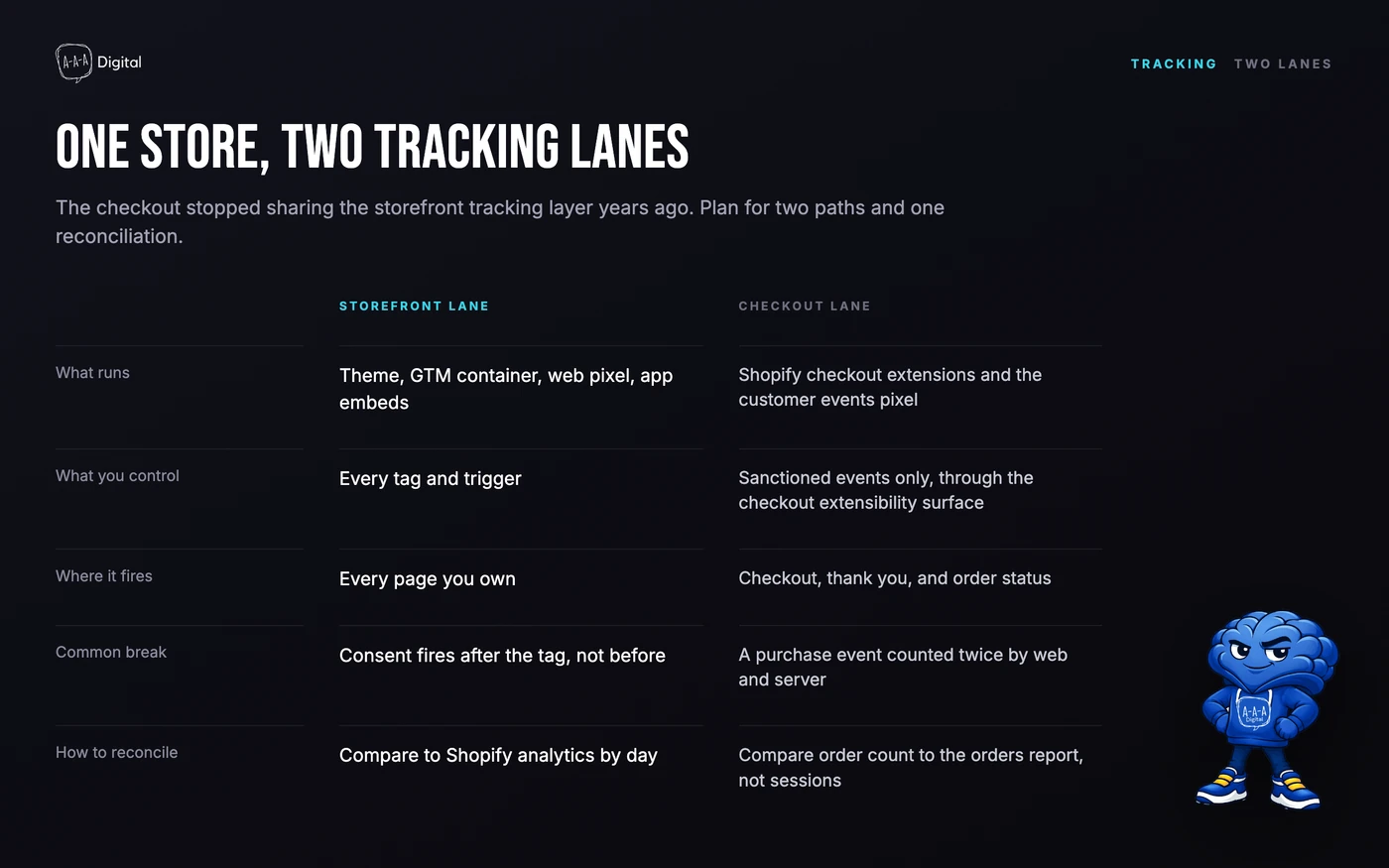
Four surfaces, and only one of them is fully yours.
| Surface | GTM access | Modern path |
|---|---|---|
| Online store (home, product, collection, cart, blog) | Full. Theme code you control. | Snippet in theme.liquid or a theme app embed |
| Checkout | Limited. checkout.liquid is gone. | Customer events → custom pixel, or a web pixel app |
| Thank you and post-purchase | Limited, same sandbox | Customer events → custom pixel |
| Customer accounts | Limited | Web pixels where supported |
Two consequences follow.
GTM is still the right home for storefront tags: GA4, Meta, LinkedIn, heatmaps. Tags in GTM survive a theme swap, which is the part people forget during a Shopify theme migration. Tags pasted into a template do not.
And GTM inside checkout is a workaround, not a control plane. The custom pixel does load a container, but inside an iframe sandbox with no access to the top page. That changes what tags can see.
The setup, step by step
1. Decide who owns GA4
Pick one source of truth for purchases before you touch code:
- Shopify's Google channel app, which sends GA4 ecommerce events through customer events.
- GTM plus a custom pixel, which you control and maintain.
- A pixel app that does both and reconciles against orders.
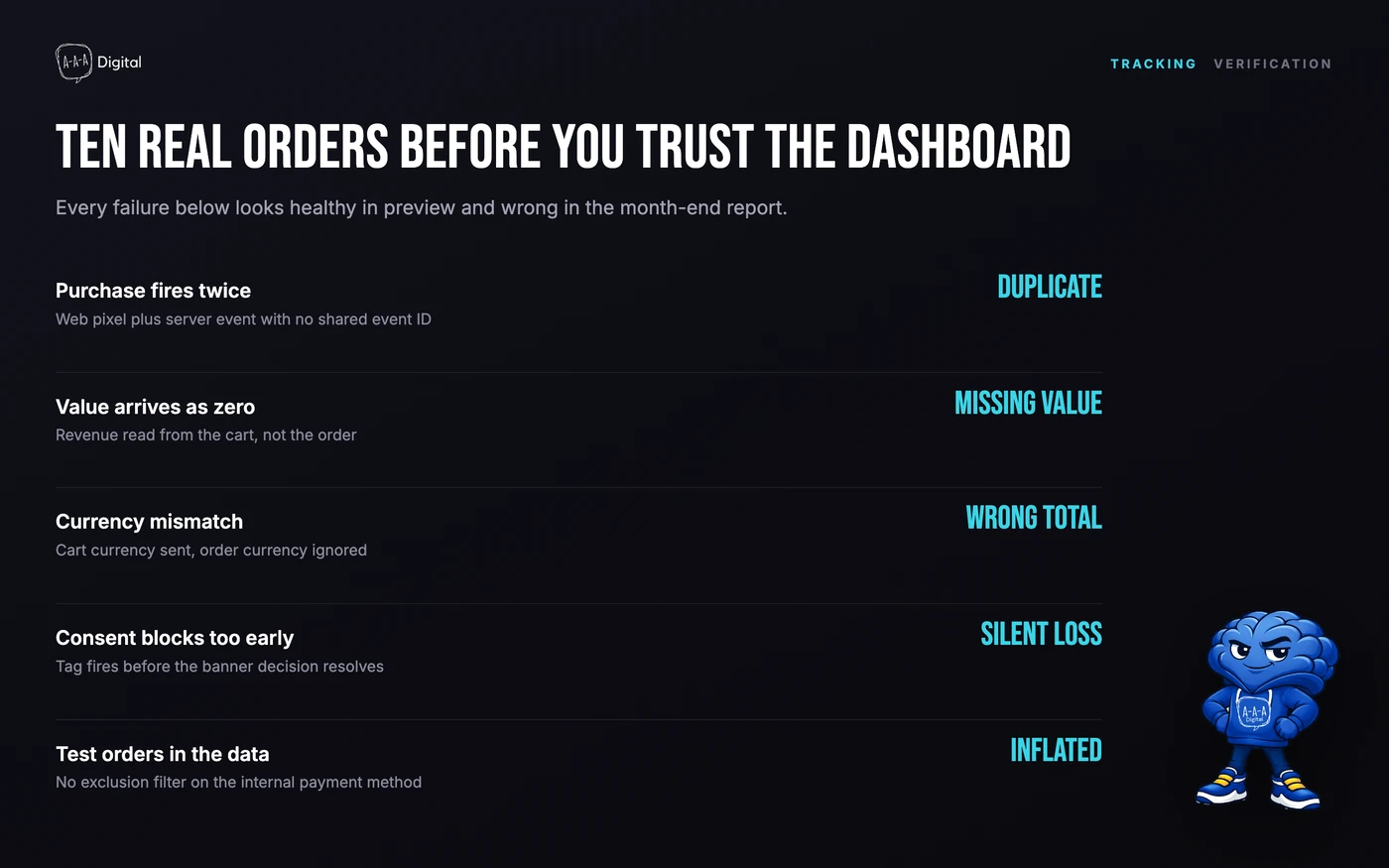
Running two of these is the most common cause of doubled revenue in GA4. If the Google channel app already works, add GTM for storefront tags and leave purchases alone.
2. Create the container and write down the IDs
One container per store, not per market, unless you have a reason. Note the container ID (GTM-XXXXXXX) and the GA4 measurement ID (G-XXXXXXXXXX).
3. Add the snippet to theme.liquid
Online Store → Themes → Edit code → Layout → theme.liquid. Paste this immediately after the opening <head> tag.
{% comment %} Google Tag Manager — online store only. theme.liquid does not render in checkout. {% endcomment %}
<script>
  window.dataLayer = window.dataLayer || [];
  window.dataLayer.push({
    event: 'shopify_context',
    page_type: {{ request.page_type | json }},
    template: {{ template.name | json }},
    currency: {{ cart.currency.iso_code | json }},
    cart_value: {{ cart.total_price | divided_by: 100.0 | json }},
    customer_id: {{ customer.id | json }},
    order_count: {{ customer.orders_count | default: 0 | json }}
  });
</script>

<script>
(function(w,d,s,l,i){w[l]=w[l]||[];w[l].push({'gtm.start':
new Date().getTime(),event:'gtm.js'});var f=d.getElementsByTagName(s)[0],
j=d.createElement(s),dl=l!='dataLayer'?'&l='+l:'';j.async=true;j.src=
'https://www.googletagmanager.com/gtm.js?id='+i+dl;f.parentNode.insertBefore(j,f);
})(window,document,'script','dataLayer','GTM-XXXXXXX');
</script>
Then the fallback iframe immediately after the opening <body> tag:
<noscript><iframe src="https://www.googletagmanager.com/ns.html?id=GTM-XXXXXXX"
height="0" width="0" style="display:none;visibility:hidden"></iframe></noscript>
The dataLayer push goes before the container loads, so your variables exist when the first tag fires. Record the edit too: this is the thing that vanishes in a theme update, which is why we keep it in the version-controlled theme rather than a settings field.
4. Push the dataLayer variables you will use
Do not hand-build product data in Liquid if you can avoid it. Shopify's web pixels already publish standard customer events, and most modern themes and apps push to dataLayer on their own.
What you want available as data layer variables:
page_type,currency,cart_valuefrom the push abovecustomer_id,order_count, so you can segment new versus returning buyers- product and cart fields from your theme:
item_id,item_name,value,items[]
Name them to match GA4's ecommerce schema. Renaming in GTM later is possible and always more expensive.
5. Add the GA4 configuration tag
Tags → New → Google Tag. Paste the measurement ID. Trigger on Initialization or All Pages, one or the other, never both.
Then turn off enhanced measurement's automatic page view if you also send your own page_view. Two sources of pageviews is the fastest way to double sessions.
If you sell in multiple currencies, send the currency actually charged and let GA4 convert. Our Shopify GA4 setup guide covers the event detail, including where the native integration stops short.
6. Map the conversion events
Shopify's customer events map to GA4 cleanly. The ones worth wiring:
| Shopify customer event | GA4 event | Where it fires |
|---|---|---|
product_viewed | view_item | Product page |
collection_viewed | view_item_list | Collection page |
search_submitted | search | Search results |
product_added_to_cart | add_to_cart | Any add to cart |
cart_viewed | view_cart | Cart page |
checkout_started | begin_checkout | Checkout entry |
checkout_address_info_submitted | add_shipping_info | Checkout |
payment_info_submitted | add_payment_info | Checkout |
checkout_completed | purchase | Thank you |
For each: a Custom Event trigger with the name exactly as pushed, and a GA4 Event tag with parameters mapped. If the parameter names miss GA4's schema (value, currency, transaction_id, items), the event arrives and the ecommerce reports ignore it. That failure is silent, so it survives for months.
7. Handle checkout with a custom pixel
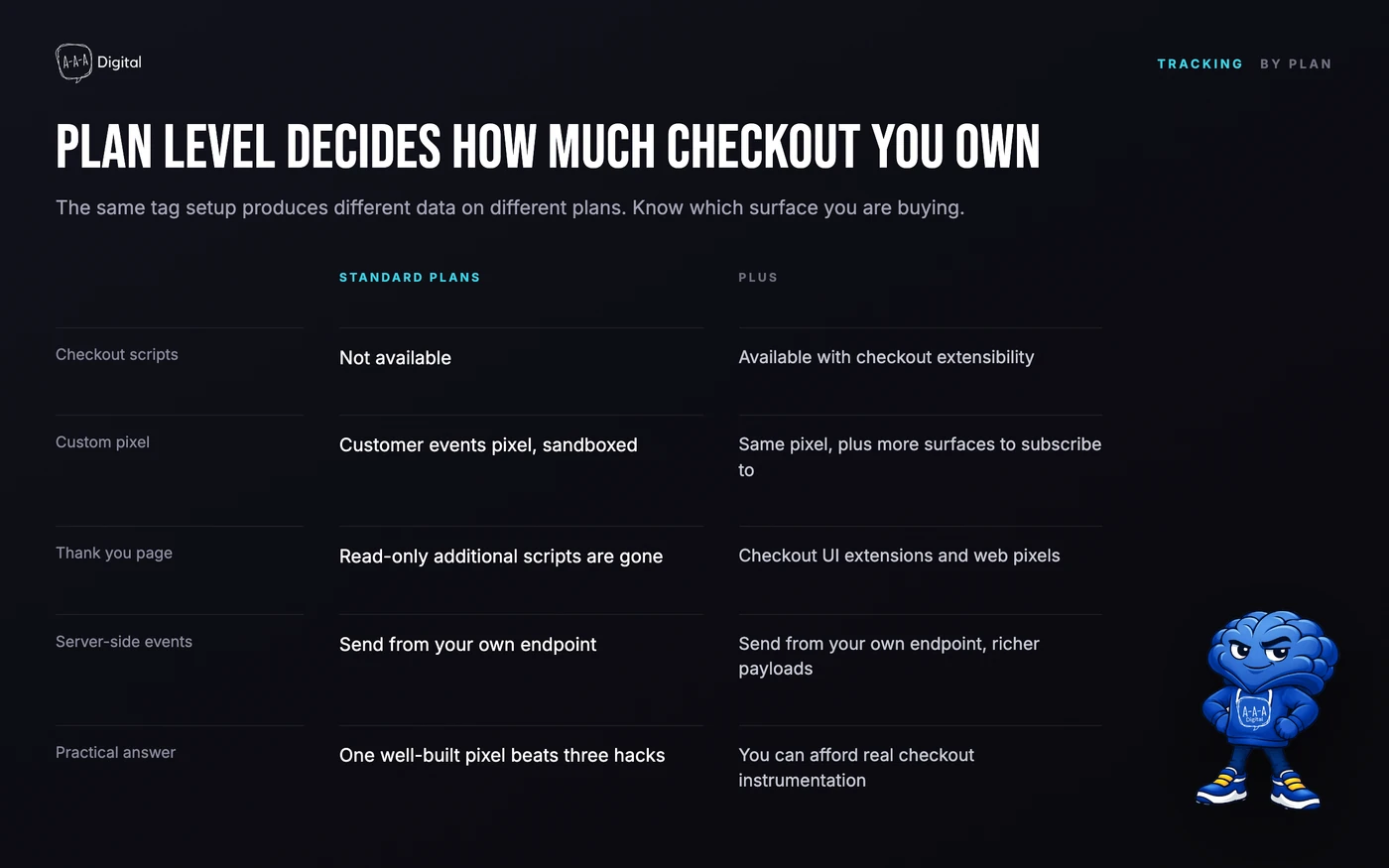
Settings → Customer events → Add custom pixel. This is the only supported route into checkout tracking for non-Plus stores, and the same mechanism Plus stores use now that checkout.liquid is retired. Branding that checkout is a separate job; our guide to Shopify checkout customization covers what each plan allows.
// Customer events → custom pixel. Runs in Shopify's lax sandbox, not the page itself.
window.dataLayer = window.dataLayer || [];
(function(w,d,s,l,i){w[l]=w[l]||[];w[l].push({'gtm.start':
new Date().getTime(),event:'gtm.js'});var f=d.getElementsByTagName(s)[0],
j=d.createElement(s),dl=l!='dataLayer'?'&l='+l:'';j.async=true;j.src=
'https://www.googletagmanager.com/gtm.js?id='+i+dl;f.parentNode.insertBefore(j,f);
})(window,document,'script','dataLayer','GTM-XXXXXXX');

analytics.subscribe('checkout_completed', (event) => {
  const checkout = event.data?.checkout;
  window.dataLayer.push({
    event: 'checkout_completed',
    event_id: event.id,
    transaction_id: checkout?.order?.id,
    currency: checkout?.currencyCode,
    value: checkout?.totalPrice?.amount,
    tax: checkout?.totalTax?.amount,
    shipping: checkout?.shippingLine?.price?.amount,
    items: (checkout?.lineItems || []).map((line) => ({
      item_id: line.variant?.product?.id,
      item_name: line.title,
      item_variant: line.variant?.title,
      quantity: line.quantity,
      price: line.variant?.price?.amount
    }))
  });
});
Set the pixel's customer privacy permissions to match what you do with the data. In consent-required regions the pixel will not run until the visitor grants them, and Shopify replays the events that already fired once they do.
Check one detail against the current web pixel reference: the identifier here is Shopify's internal order ID, not the order name a merchant sees (#1001). If your reporting needs them to match, treat that as a mapping problem.
8. Configure Consent Mode v2
Four signals matter now: ad_storage, analytics_storage, ad_user_data, ad_personalization.
Defaults must be set to denied before the container loads, then updated when the visitor chooses. Set them inside GTM after the container fires and your tags have already run, which makes the banner decoration.
Shopify's privacy banner and most consent apps gate pixels through Customer privacy settings, and Shopify documents how its pixel permissions map to Google's consent signals. Third-party banners need their own update mechanism. Test the denied state: reject everything, then confirm no GA4 or ad tag fires.
9. Deduplicate before you publish
Two rules prevent almost every duplicate purchase:
- One owner per purchase event. Either the custom pixel or the Google channel app, not both.
- One
transaction_idper order. GA4 drops duplicate purchases that share an ID. If two sources send different IDs for the same sale, GA4 counts both.
Meta has its own version of this: browser and Conversions API events pair on a shared event_id. Our Shopify Meta pixel setup guide covers that pairing.
Why GTM inside checkout stays limited
The sandbox is the reason. A custom pixel runs in a lax sandbox iframe, and everything inside it is restricted:
- No access to the top page.
window.locationis the sandbox URL, which is why GA4 sometimes reports sandbox parameters in page paths. - No DOM scraping. Tags that read page content fail or send nothing.
- No automatic enhanced measurement. Outbound clicks, scroll, and video engagement do not fire on their own.
- Tag Assistant's troubleshoot mode does not detect tags inside a custom pixel. Shopify's Pixel Helper is the tool for that layer.
For stores with real ad spend, the answer is server-side GTM: send checkout_completed to a server container and fire GA4, Meta, and the rest from there. It survives consent better and loses fewer events. It is also a bigger build than a snippet.
The failures we see most
Duplicate pageviews. Enhanced measurement left on alongside a manual page_view, or a second GA4 tag from an app. Sessions double, engagement halves, nobody notices for a month.
Missing purchases. The pixel was never published, its privacy permissions exclude the market you are testing from, or the GA4 tag expects parameters the push does not send.
Preview not firing in checkout. Expected. GTM Preview connects to the top page; the pixel runs in an iframe. Use Shopify Pixel Helper and DebugView.
CSP and app conflicts. A security app, consent app, or theme app extension that injects its own tags can block or duplicate the container. If GTM stopped firing after an install, check that app first.
Consent blocking everything. A banner that never sends an update, or sends it before the container loads. Result: a store with a banner and no measurement.
Pre-orders counting too early. Apps that create an order at pre-order time can fire checkout_completed before money moves, or twice. Our Shopify pre-order apps guide covers the order-creation behaviour to test.
Verification checklist
- Tag Assistant on the storefront. Container loads once, GA4 tag fires once per page.
- GA4 DebugView. Walk product → cart → checkout in debug mode; each event arrives once, with parameters.
- Shopify Pixel Helper. The custom pixel loads in the sandbox and the events you subscribed to are pushed.
- A real test order. A 100% discount code or a test provider. Check the order in admin and the event in DebugView.
- Reconcile order counts. Shopify orders against GA4 purchases for 7 and 28 days. A 5–20% gap is normal: consent, ad blockers, cross-device, session expiry. A 40% gap is a bug.
- Check page paths. Sandbox URLs in landing page reports mean you need to disable automatic page tracking and send
page_locationfrompage_viewed.
If the numbers still do not line up, our Shopify SEO service audits the technical layer underneath, including indexation and canonical problems that tracking issues tend to hide.
When not to use GTM
- You run a small store with basic needs. Google channel app plus GA4 covers a few hundred orders a month, and that is the whole job.
- No one can maintain the container. Containers rot: dead pixels, renamed events, and the person who built it has left.
- You have no consent process. GTM makes it easier to fire tags you may not legally fire without a banner.
- You are pre-launch. Instrument after the store works.
- Your only goal is one pixel. Without multiple tags there is nothing to control.
FAQ
Do I still need GTM if I use Shopify's Google channel app?
For GA4 ecommerce, no. The app sends the events. Use GTM for everything else: other platforms, custom events, and tags you want to change without editing theme code.
Does GTM work on Shopify checkout in 2026?
Only through a custom pixel in Customer events, running in a sandbox with reduced access. There is no supported way to load a container into checkout directly anymore.
Why does GTM Preview show nothing in checkout?
Preview attaches to the top page; the custom pixel runs in an iframe. Use Shopify Pixel Helper for sandbox events and GA4 DebugView for what reached Google.
Do I need server-side GTM?
If you spend meaningfully on ads, yes, or use a tool that does the same job. Browser-only tracking loses events to ad blockers, consent, and the sandbox, and checkout is where that loss costs most.
Will GTM slow down my store?
One container is a small async script. The damage comes from what you put in it: chat widgets, heatmaps, and five ad platforms cost more than the container. Audit tags quarterly.
If your numbers do not reconcile and you want a second pair of eyes on the container, book a free strategy call. Bring your GA4 purchases, your Shopify order count, and a week of patience. Our performance marketing team will tell you which of the two is wrong, and why.
