
Search "how to use Shopify" and you get another store setup tutorial: pick a theme, add a product, connect a domain. Useful once. Useless on the Tuesday morning when an order needs a refund, a discount is stacking with another discount, and the payout in your bank is smaller than the sales report.
This is the operating guide. What each screen is for, how money moves from a customer's card to your account, and what deserves ten minutes a week.
What are the Shopify admin screens you will actually use?
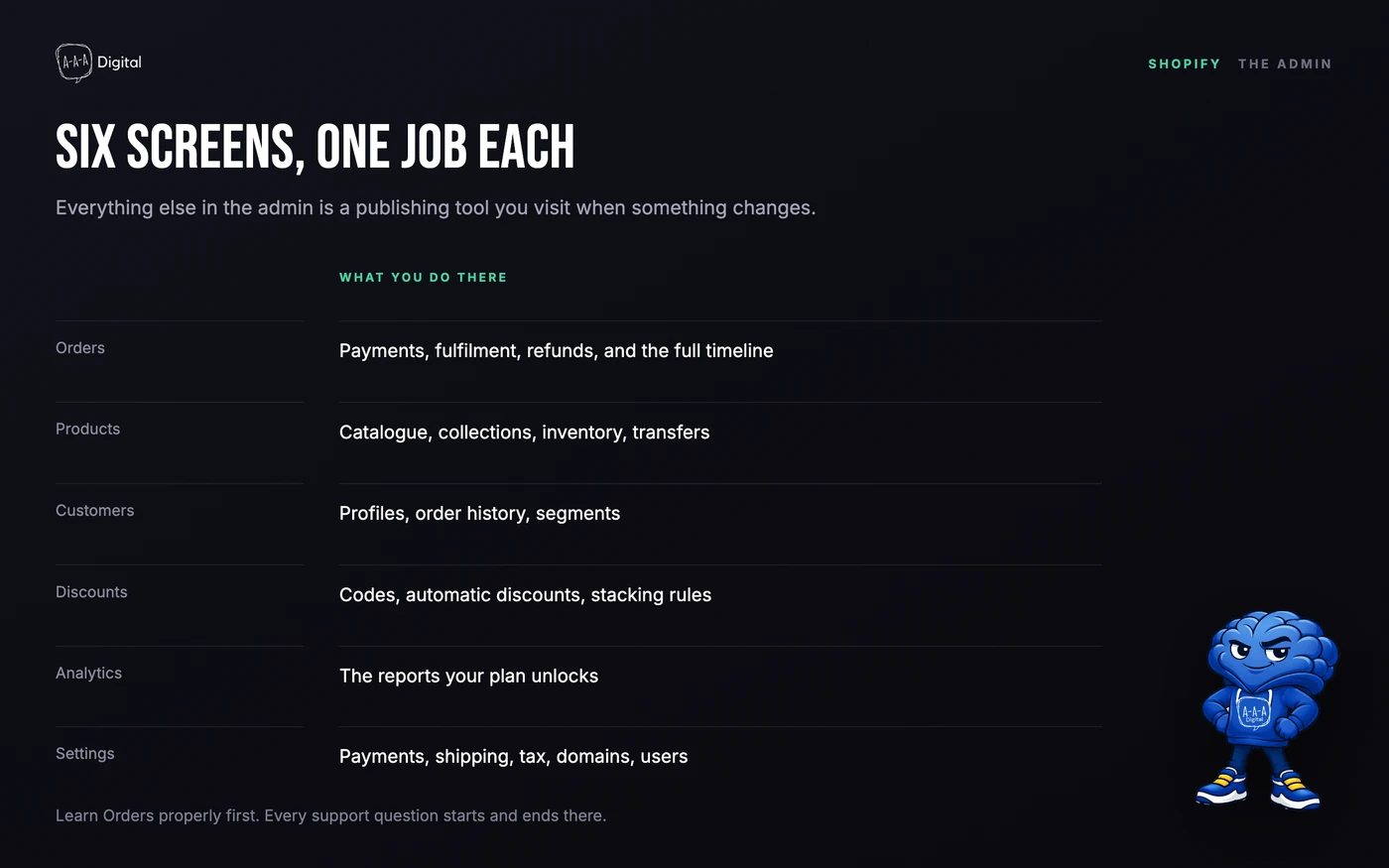
Six screens do most of the work. Everything else is occasional.
Orders is the operational centre. Every order, its payment status, its fulfilment status, and its timeline of events. If you learn one screen properly, learn this one.
Products holds the catalogue, collections, inventory, and transfers, and our guide to adding products to Shopify covers the field order. Customers holds profiles, order history, and segments, which is where repeat-purchase work starts. Discounts holds codes and automatic discounts. Analytics holds the reports included with your plan. Settings holds payments, shipping, taxes, domains, notifications, and users. It also holds the plan itself, and canceling or pausing it happens on the same screen.
Content, Files, and Online Store are the publishing side: pages, blogs, navigation, and the theme editor. You will use them at launch and then rarely, which is a good sign.
What should you do on day one in the admin?
Ignore the theme for an hour and set the operating defaults instead, because they are the settings that are annoying to change once orders exist.
Confirm the store currency and the unit system, set your order ID format if you need one, and add the business address that appears on invoices. Then open Settings > Notifications and read the order confirmation template. It is the most-read email your store sends, and the default is bland but functional.
Then decide who gets which notification. Every new order pinging the founder's phone is useful at ten orders a week and intolerable at a hundred. Route fulfilment notifications to whoever packs.
How does a Shopify order become money in your bank?
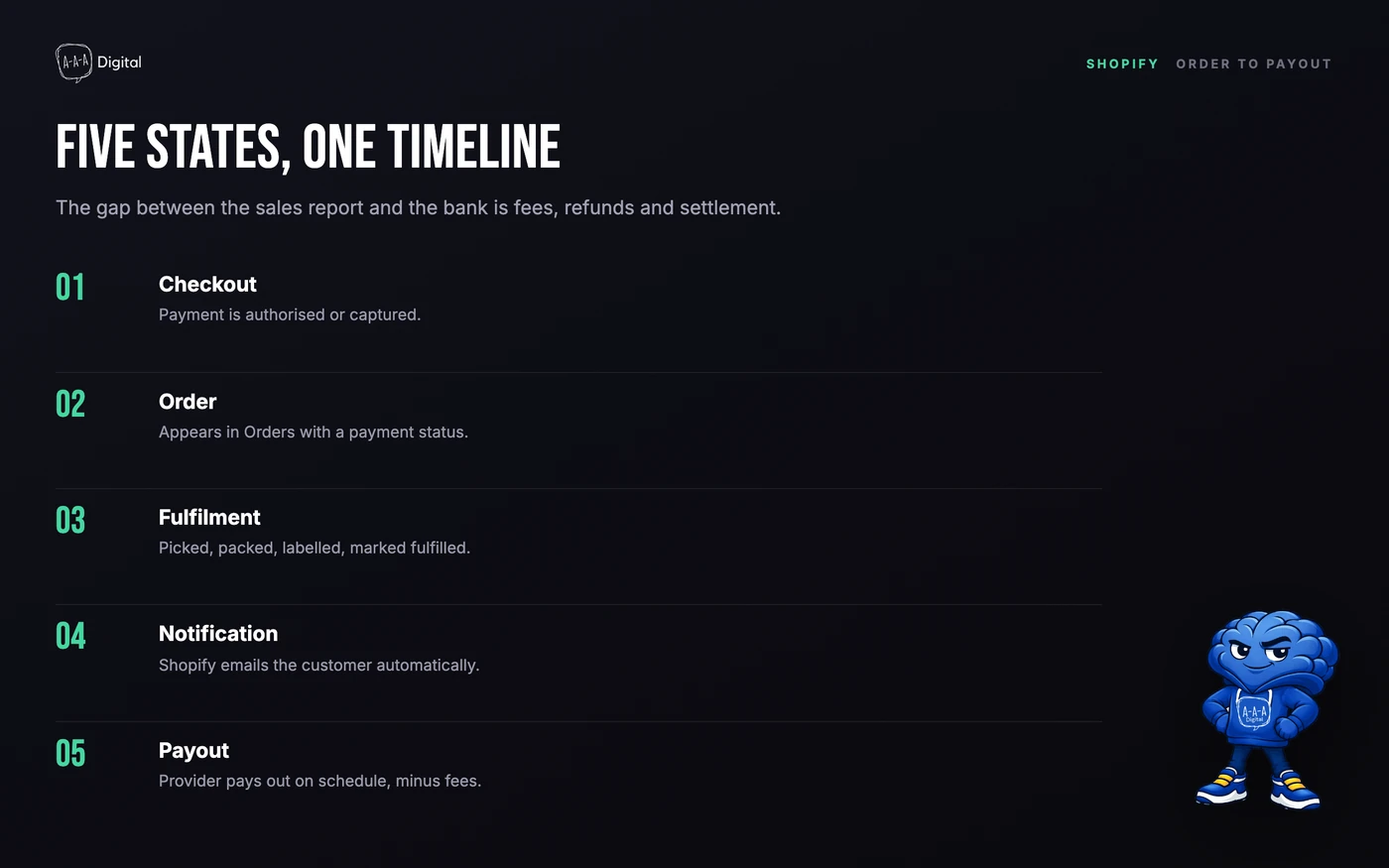
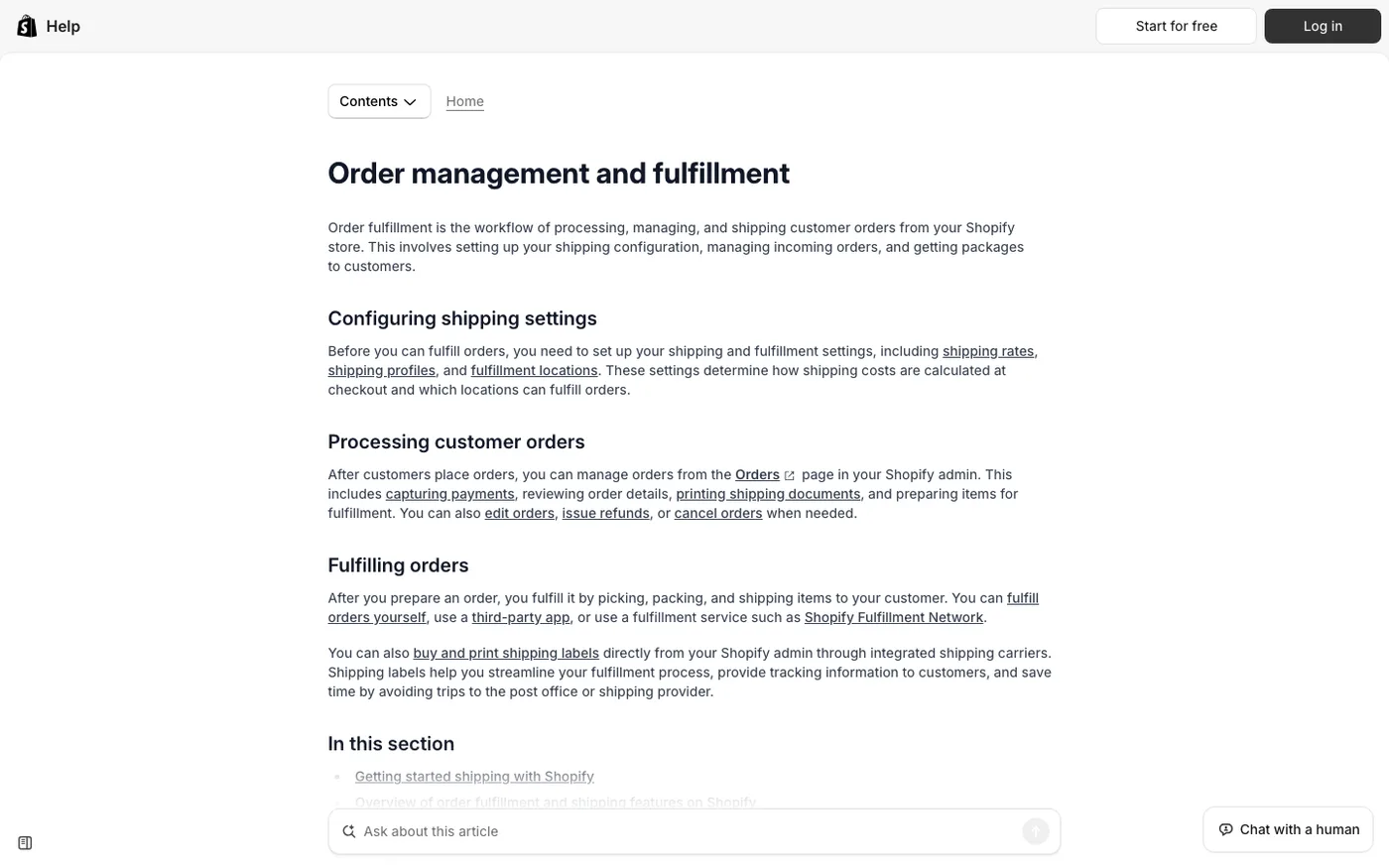
Five states, in order. The customer checks out and the payment is authorised or captured. The order appears in Orders with a payment status. You fulfil it, which means picking, packing, and buying a label or marking it as fulfilled. Shopify notifies the customer. The payment provider pays out on its schedule, minus fees.
Shopify Payments pays out on a schedule you can set, commonly daily or weekly, and there is usually a short delay between the sale and the payout while the payment settles. The gap between the sales report and the bank balance is that delay plus refunds and fees, not an error.
The order timeline is the record of all of it. Every email sent, every refund, every fulfilment, and every note sits in one column, which is why support questions are answerable in seconds rather than by cross-referencing three systems.
How do you handle refunds, cancellations, and edits?
Cancelling and refunding are not the same action, and the difference matters. Cancelling an unfulfilled order releases the payment and can restock the item. Refunding a fulfilled order returns money without changing the fact that the parcel shipped.
For anything complex, follow the two-question test in our guide to cancelling a Shopify order: has anything been fulfilled, and has the payment been captured? Those answers decide whether you void an authorisation, issue a refund, or start a return.
Editing an order after payment is possible for address changes and added items, but it is not the same as editing a draft. If a customer wants a different variant after checkout, the clean route is usually cancel and re-order, especially if a label already exists.
How do discounts work without eating your margin?
Two kinds exist: discount codes the customer enters, and automatic discounts applied at checkout. Codes are for campaigns and partners. Automatic discounts are for rules you want applied without asking, such as a bundle price.
The setting that causes trouble is combinations. Shopify lets you decide whether a code can combine with other codes, with automatic discounts, or with shipping discounts. Left open, a customer can stack a 20% welcome code on a 15% seasonal automatic discount and buy at a loss.
Decide the stacking rule before your first campaign, not during it. Then check the discount report after the campaign, because the number that matters is margin after discount, not orders.
What changes when you move up a plan?
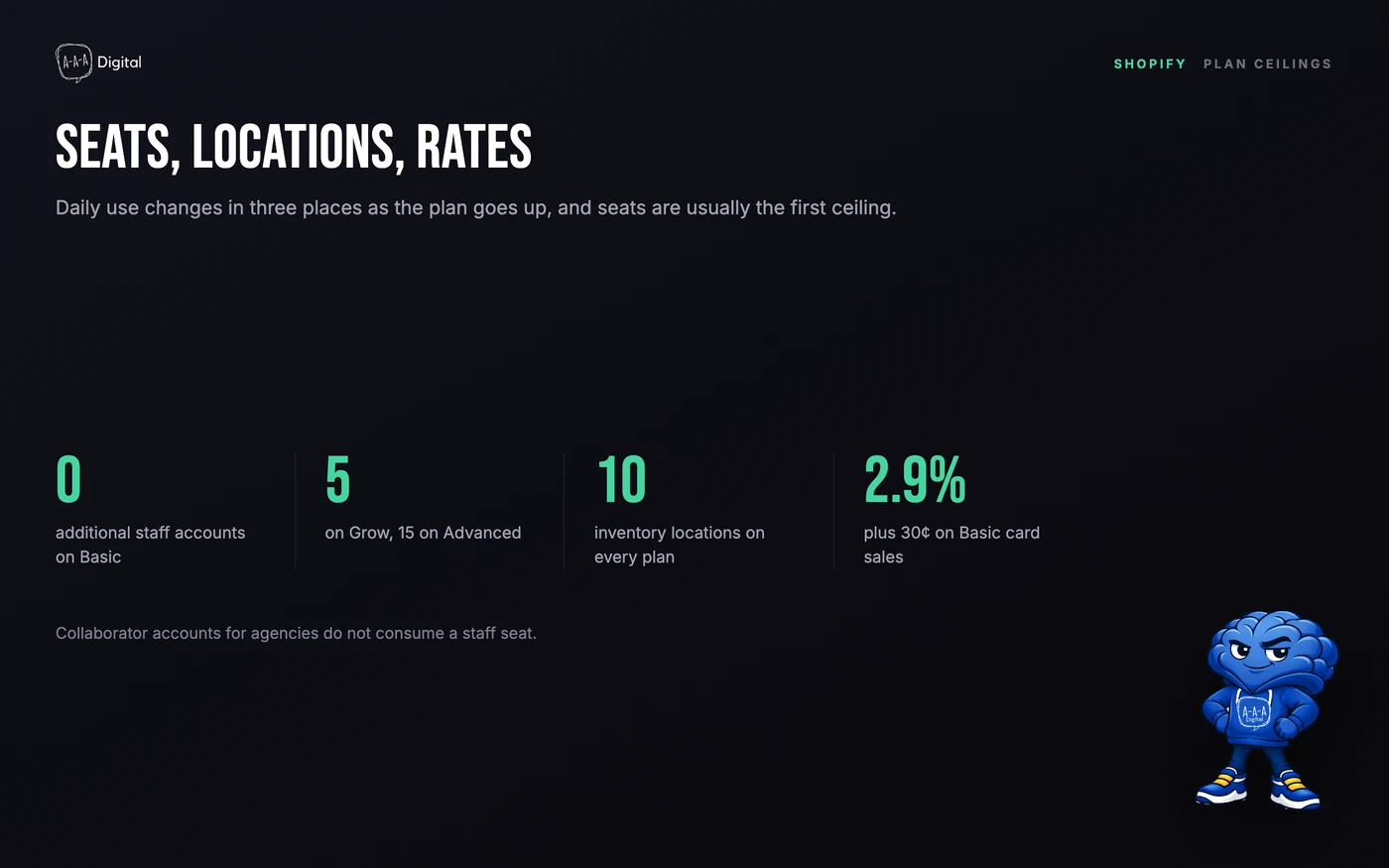
Daily use changes in three places: seats, locations, and rates. Basic includes no additional staff accounts, Grow adds five, Advanced fifteen, and every plan includes ten inventory locations. Card rates fall as you move up: 2.9%, 2.7%, 2.5%, and 2.25% plus 30 cents, with third-party transaction fees falling from 2% to 0.2%.
Reports matter too. Higher plans add report building and custom reports, which is the point where a store stops exporting CSVs into a spreadsheet. Our guide to Shopify plan costs works through when the jump pays for itself.
How do you give someone else access?
Two routes. A staff account gets a login with a role and permissions, and the number you can add depends on the plan. A collaborator account is for an agency or developer: they get access through their own Partner dashboard, with permissions you set, and no seat is consumed.
Use collaborator access for anyone outside the business. It is easier to revoke, it does not share a password, and it keeps your staff seat count for people who actually work in the store. Our guide to Shopify collaborator accounts covers the permission checklist.
What should you check every week?
Ten minutes, five numbers:
Orders with payment issues. Anything authorised but not captured, or flagged as high risk, needs a decision today.
Abandoned checkouts. The recovery email is built in. Check that it is on and that it is being sent.
Low stock. Filter inventory by quantity. A stockout on your best seller costs more than any ad optimisation.
Conversion rate by source. One number, checked weekly, tells you whether traffic quality or the store changed. Our GA4 setup guide makes this a two-click report instead of an export.
Refunds and disputes. A rising refund rate is a product page problem or a shipping problem. Both are fixable; neither fixes itself.
Where do apps fit, and when do they stop helping?
Apps fill gaps Shopify does not cover natively: reviews, subscriptions, advanced bundles, warehouse logistics. Each one is a monthly fee and a small performance cost, and the average store's app bill grows one urgent install at a time.
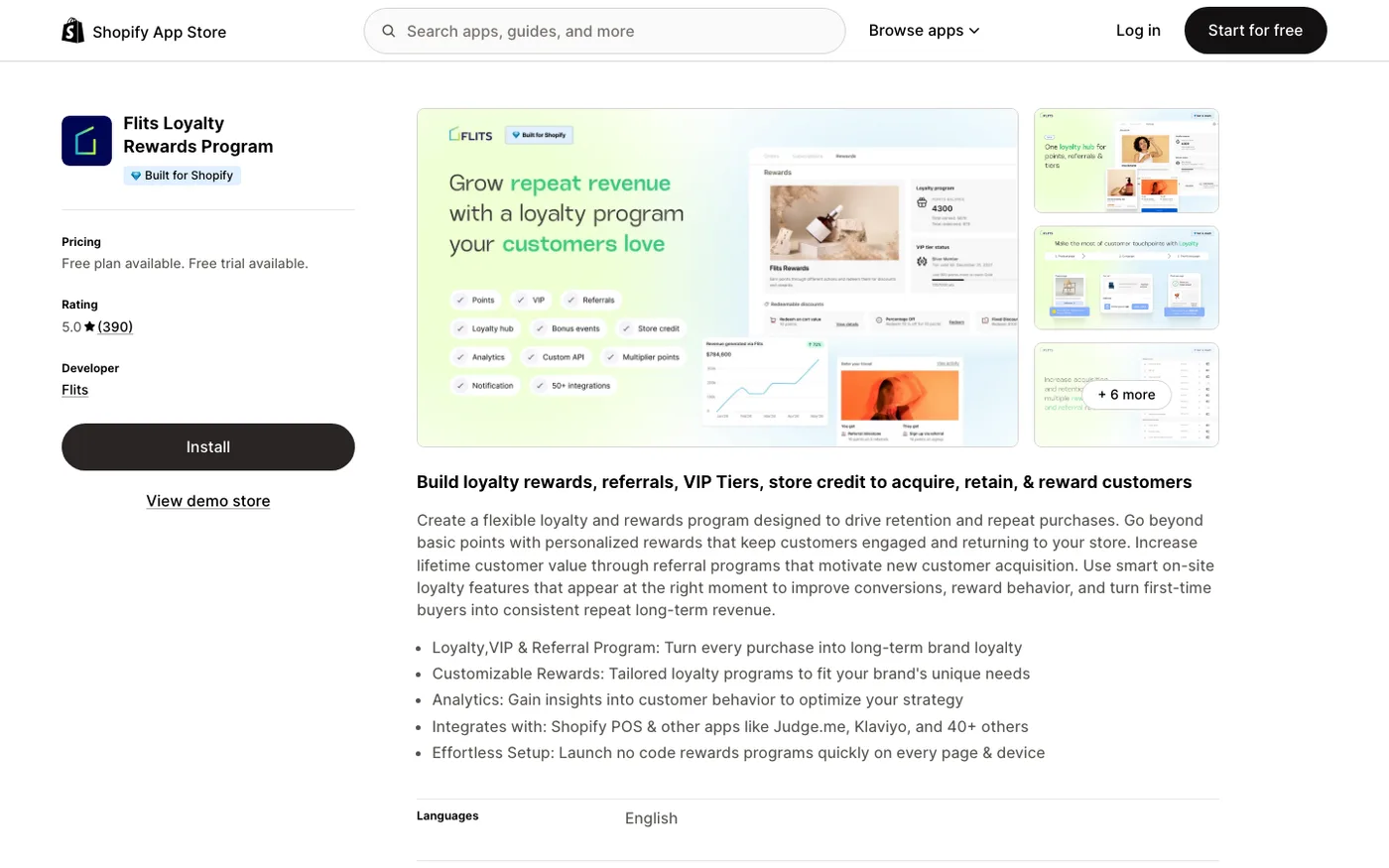
The pattern to watch is duplication. Two review apps, an email platform plus the built-in one, an upsell app whose feature the theme already supports. A quarterly audit of Settings > Billing takes half an hour and routinely finds $100 to $300 a month. Our guide to inventory management apps shows what a considered stack looks like rather than an accidental one.
What do people misunderstand in the first month?
That the admin is the business. It is the till. Traffic, offer, and product decide whether the till rings.
That more apps mean more capability. They mean more surface area to maintain and more monthly cost to cover.
That design is the constraint. When a competitor converts better, the theme is rarely the reason, but it is worth knowing what they run. Our theme detector shows the theme and apps on any store, which settles the argument in about ten seconds.
That Shopify handles tax for you. It calculates rates you configure. The registration, the filing, and the liability are yours.
That a plan upgrade fixes conversion. It changes rates and limits. It does not change the offer.
Frequently Asked Questions
Is Shopify hard to use for beginners?
No. The admin is a handful of screens and the defaults are sensible. The learning curve is in the operating decisions, not the interface: shipping rates, tax, refunds, and discount rules.
Do I need to know code to use Shopify?
No. Themes, products, orders, discounts, and settings are all handled in the admin. Code becomes relevant for custom sections, unusual checkout logic, or theme performance work.
Where do I see my Shopify payouts?
In Settings > Payments, under the Shopify Payments section, which lists payouts, fees, and the bank account they go to. Shopify Payments also has an activity report that reconciles sales against fees and refunds.
Can I use Shopify on my phone?
Yes. The Shopify app handles orders, products, inventory, and customer replies, which covers most of a day's work. Theme editing and report building are still better on a desktop.
How many staff accounts do I get?
Basic includes no additional staff accounts beyond the owner. Grow adds five, Advanced fifteen, Plus unlimited. Collaborator accounts for agencies do not use a seat.
The admin gets easier in a fortnight. The decisions that decide whether the store works, offer, traffic, and margin, take longer. If you want a second pair of eyes on the operating side, our Shopify development team handles builds and fixes, and how to set up a Shopify store covers the launch checklist if you are still at that stage.
